 MarineOps
 Phone App Manual › Repair Orders
Checking In a boat
The seven-step check-in with walk-around photos and signature.
Included in: Starter plan and up
The check-in walks you through everything that should happen when a boat is dropped off: the customer, the boat, what's wrong, walk-around photos, and the customer's signature. It's perfect on a tablet at the counter or in the lot.
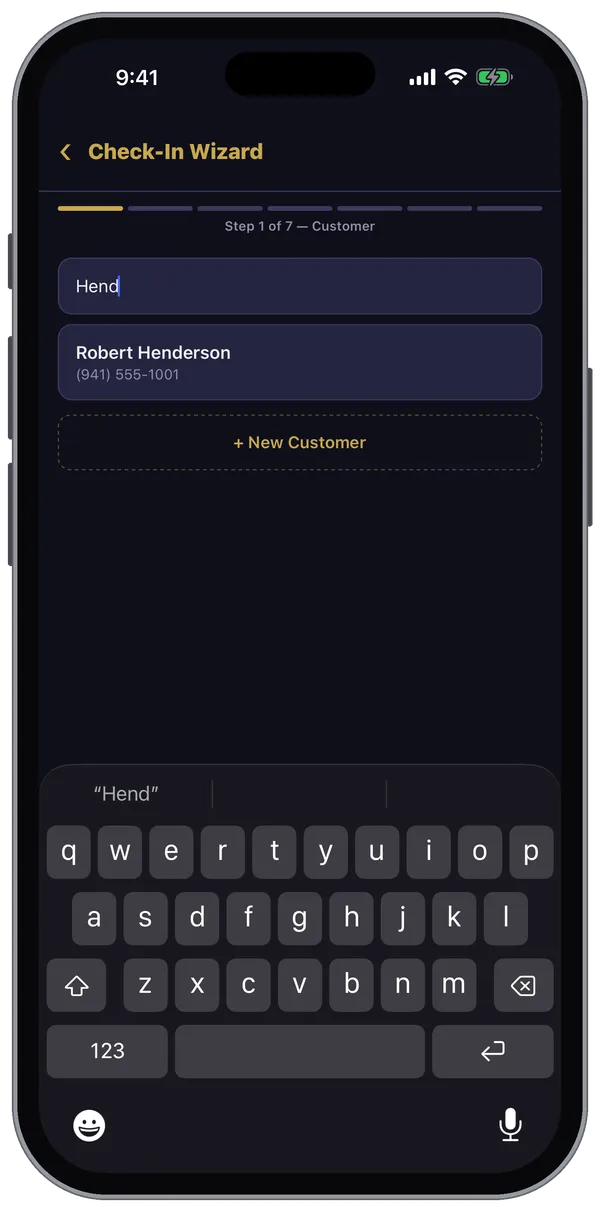
The seven steps
- Customer — search by name, phone or email, or tap + New Customer. If they already have an open work order, you can pick it and the boat and concerns fill in.
- Vehicle — choose their boat or add it. SCAN the HIN and the year, make and model fill in; you can also scan the license plate.
- Concerns — what the customer wants done. Type each one, or Add Job / Recipe to pull in a saved job. Go over them with the customer before they leave.
- Walk-Around — photos all the way around the boat, plus notes on any pre-existing damage. This protects you and the customer.
- Details — engine hours, generator hours, fuel type, bay, advisor and estimated pickup, plus staff-only notes.
- Confirm — look everything over.
- Signature — hand the device to the customer to sign. A signature is required to finish.
When you finish, the RO is created (or updated) and, if your shop has a Zebra printer set up, the key tag prints automatically.
Interrupted?
If you leave in the middle, the app offers to Resume Check-In next time. If there's no signal when you finish, the check-in — photos included — is saved on the device and sent as soon as you're back online.
Check-In is on the Starter plan and up.
Still stuck? Send us a message (or email [email protected]) and tell us what you were trying to do — we answer within one business day.