 MarineOps
 Phone App Manual › Repair Orders
Finding a Repair Order
Search and filter the repair order list.
Included in: Every plan
The Repair Orders tab lists every repair order your login can see, newest first.
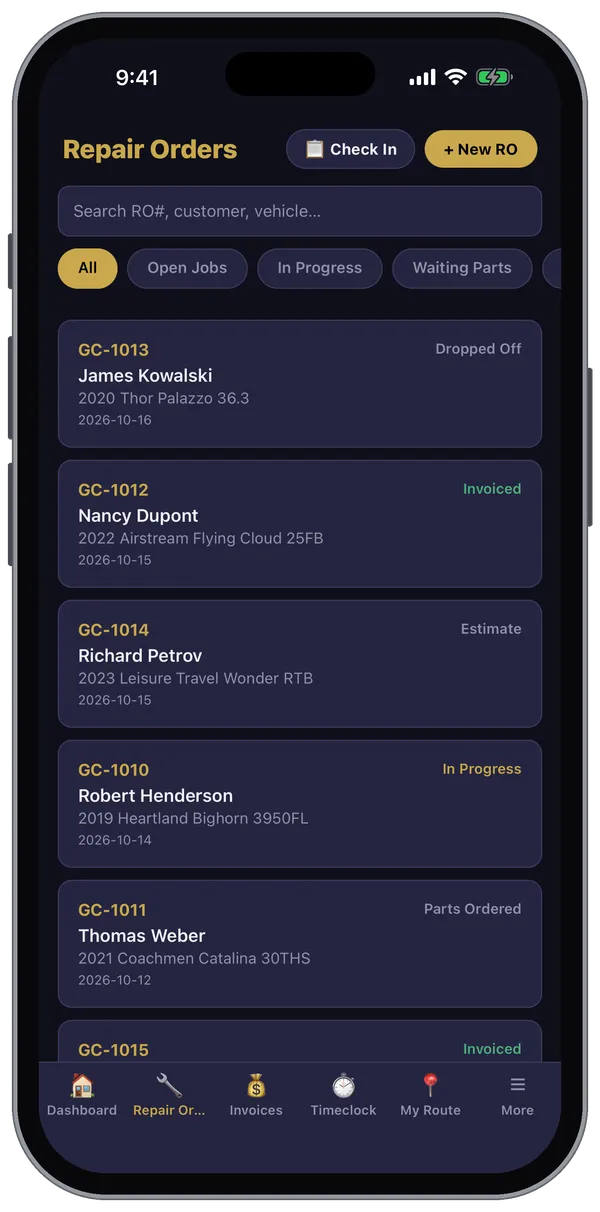
Search
Type in the search box at the top — an RO number, the customer's name, or something about the boat (year, make or model).
Filter by status
Tap a filter under the search box: All, Open Jobs, In Progress, Waiting Parts, Ready Pickup, Completed or Invoiced. Swipe the filters sideways to see them all.
Open an RO
Tap the card. See Working a Repair Order for what you can do inside it.
Have the keys in your hand? Use the Scan Key Tag tile on the dashboard — scanning the tag opens that RO directly.
The buttons at the top of the list start new work: Check In runs the full check-in, and + New RO starts a quick repair order.
Still stuck? Send us a message (or email [email protected]) and tell us what you were trying to do — we answer within one business day.