 MarineOps
 Phone App Manual › Repair Orders
Running an Inspection
Work through a checklist and send advisories to the estimate.
Included in: Pro plan and up
Inspections are checklists — an annual service, a pre-purchase inspection, a roof check — that you work through on your phone. Items you mark as advisories can go straight onto the estimate.
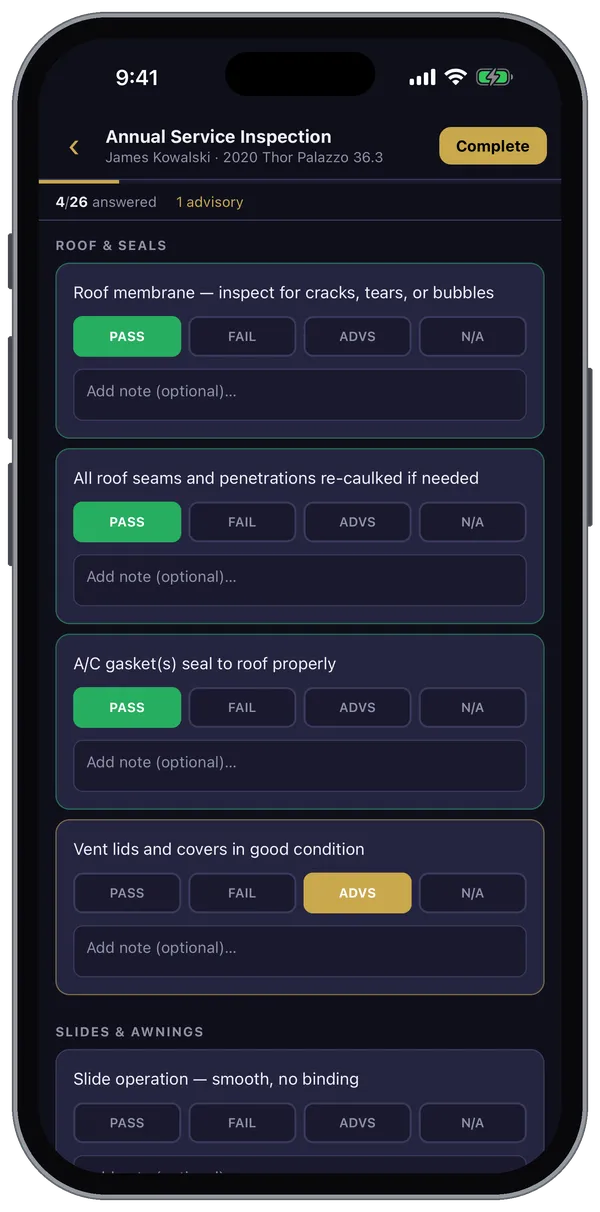
Start an inspection
- Open the repair order and scroll to Inspections.
- Tap + Start and pick a template.
- To continue one already started, tap Open next to it.
Work through the checklist
For each item, tap PASS, FAIL, ADVS (advisory — needs attention soon) or N/A, and add a note if it helps. Every answer saves the moment you tap it, so you can stop and come back. The bar at the top shows how many items you've answered.
Finish
- Tap Complete at the top.
- If some items aren't answered yet, the app asks whether to go back or complete anyway.
- If you marked any advisories, the app offers to Add to Estimate — each one becomes a concern on the RO for the customer to review and approve.
Templates
Owners and managers can build and edit checklists under More → Settings → Inspection Templates (or on the web version): sections like Roof & Seals or Slides, and the items in each.
Still stuck? Send us a message (or email [email protected]) and tell us what you were trying to do — we answer within one business day.