 MarineOps
 Phone App Manual › Customers & Parts
Inventory & Parts
Inventory, shop supplies, parts to order and purchase orders.
Included in: Every plan
Parts screens are under More. Which ones you see depends on your login and plan.
Inventory
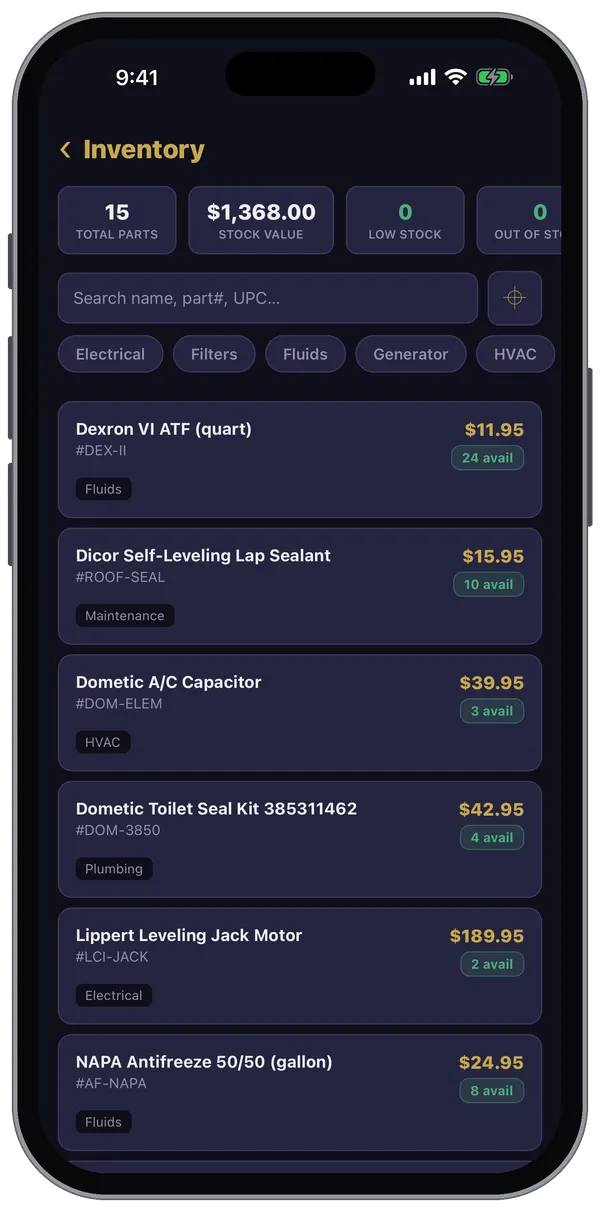
- Search by name, part number or UPC — or tap the scan button and point the camera at the barcode.
- Tap a category to narrow the list.
- The tiles across the top show total parts, stock value, low stock and out of stock.
Shop Supplies
For things the shop uses up — sealant, rags, fluids. Search or Scan the item, tap Check Out, enter the quantity and a note (like the RO number or bay), and pick who took it.
Parts to Order
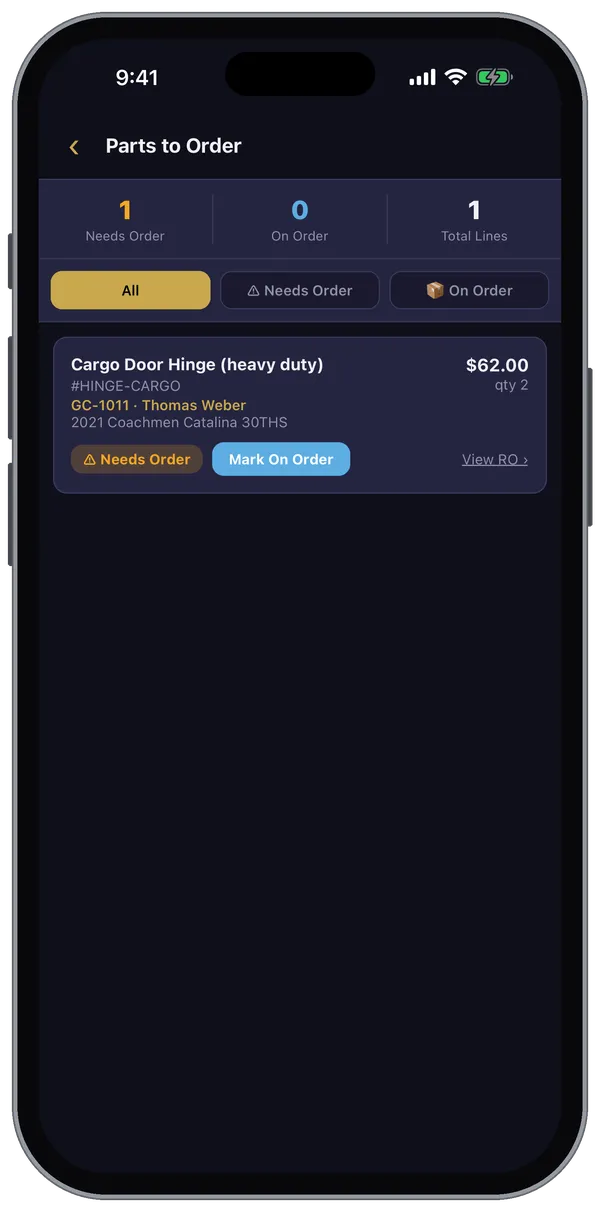
One list of every part that's on an RO but not in stock. Filter by Needs Order or On Order. Tap Mark On Order when you order it and Mark Received when it arrives. View RO › jumps to the job. (Pro plan and up.)
Purchase Orders
See Open, All or Received POs. Tap + New PO to start one for a vendor. Open a PO with View Lines ›, then Receive Items when the shipment arrives — enter how many of each line came in. (Pro plan and up.)
Building a big purchase order is easier on the web version; receiving the boxes is easier on your phone.
Still stuck? Send us a message (or email [email protected]) and tell us what you were trying to do — we answer within one business day.