 MarineOps
 Help Center › The Tech App
Working an RO on Your Phone
Clock in, add photos and notes, and finish the job.
Included in: Every plan
This is where techs spend their day: open the RO they're assigned to, clock in on the job, take photos, write what they found, and mark it done.
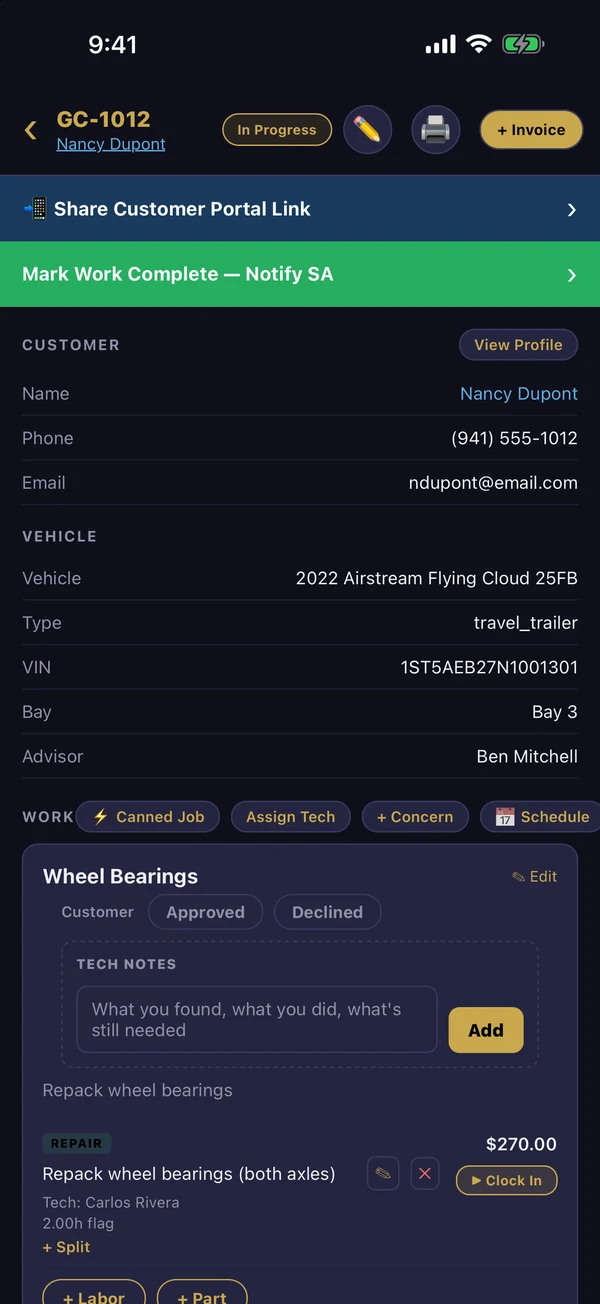
Working a job
- Tap Repair Orders and open the RO.
- Find your labor line and tap ▶ Clock In when you start. Tap it again to clock out when you stop.
- Add tech notes as you go — type them, or tap the keyboard's microphone and talk.
- Fill in the cause and correction on each concern when the work is done.
- Take photos — before, after, damage, parts and model plates — with the camera button. They appear on the RO right away.
- Need a part? Add Part to request it; the office prices and orders it.
- When everything's done, tap Mark Work Complete — Notify SA. The service advisor is told the boat is ready for review.
Sharing with the customer
Tap Share Customer Portal Link on the RO to text or email the customer their portal link, so they can follow along and approve work.
Other things you can do from the RO
- Assign Tech and add jobs (with permission)
- Run an inspection (Pro and up)
- Print a key tag to the shop's Zebra printer
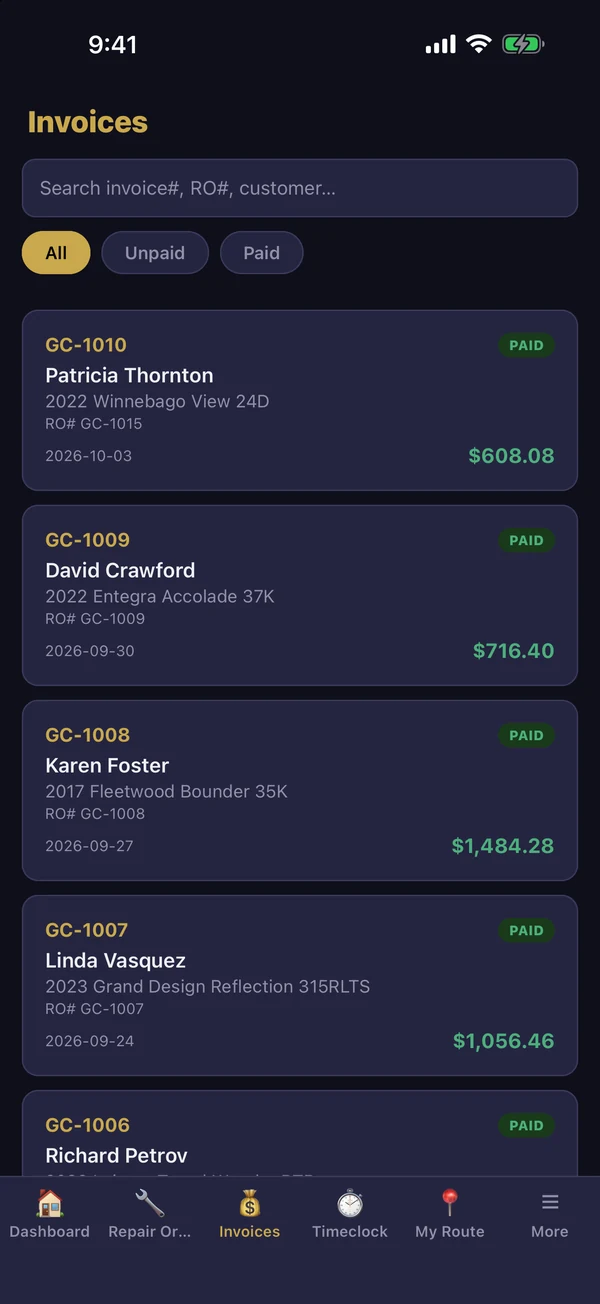
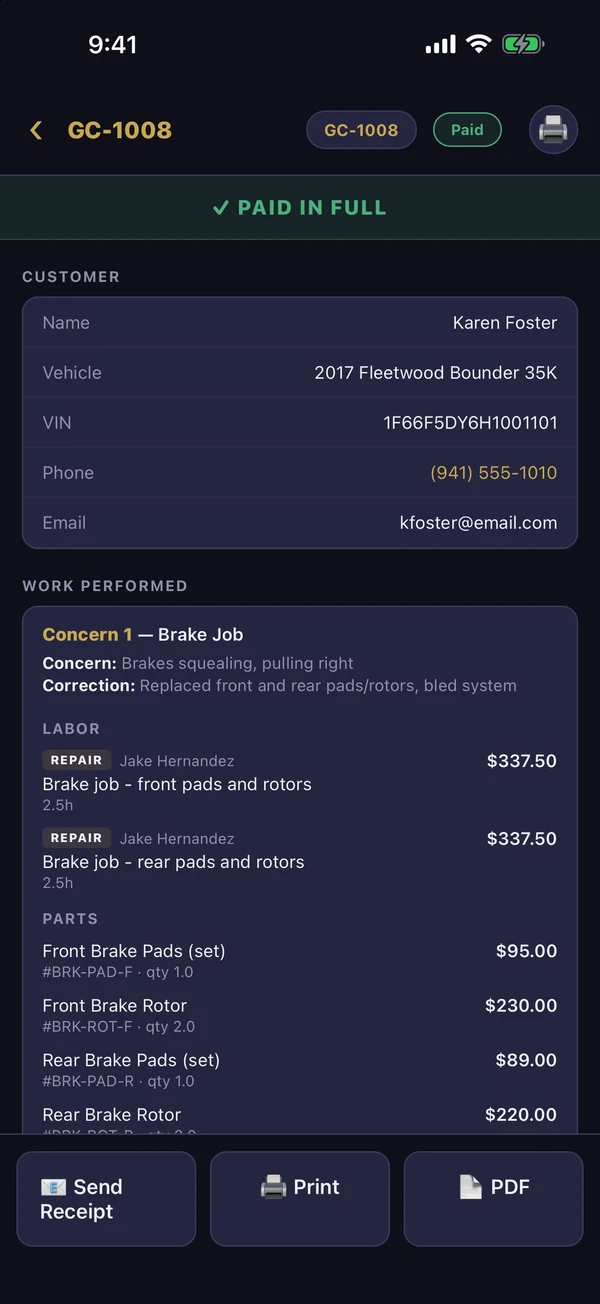
- + Invoice and take payment (with permission)
Still stuck? Send us a message (or email [email protected]) and tell us what you were trying to do — we answer within one business day.