 MarineOps
 HR, Hiring & Onboarding
HR / Employees keeps your people side of the business in one place: job applications, new-hire paperwork, employee files, certifications, time off and your handbook.
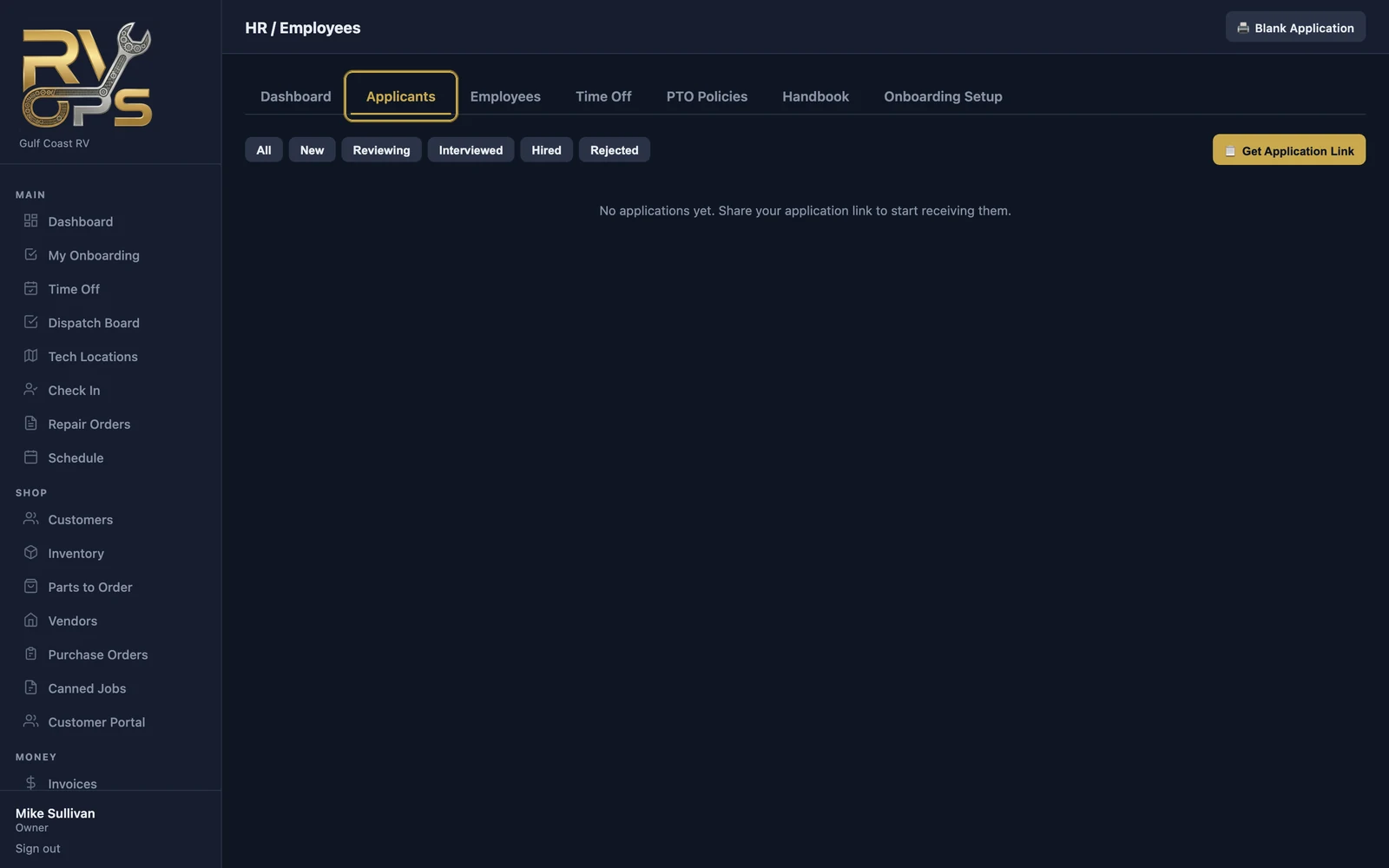
Hiring: online applications
- Open HR / Employees → Applicants and click 📋 Get Application Link.
- Put the link on your website, a job post or a text to a candidate. Applicants fill out your application on their phone.
- New applications land under Applicants. Move each one through New → Reviewing → Interviewed → Hired (or Rejected).
- When you hire someone, convert the applicant into a staff login in one step — their details carry over.
Onboarding new hires
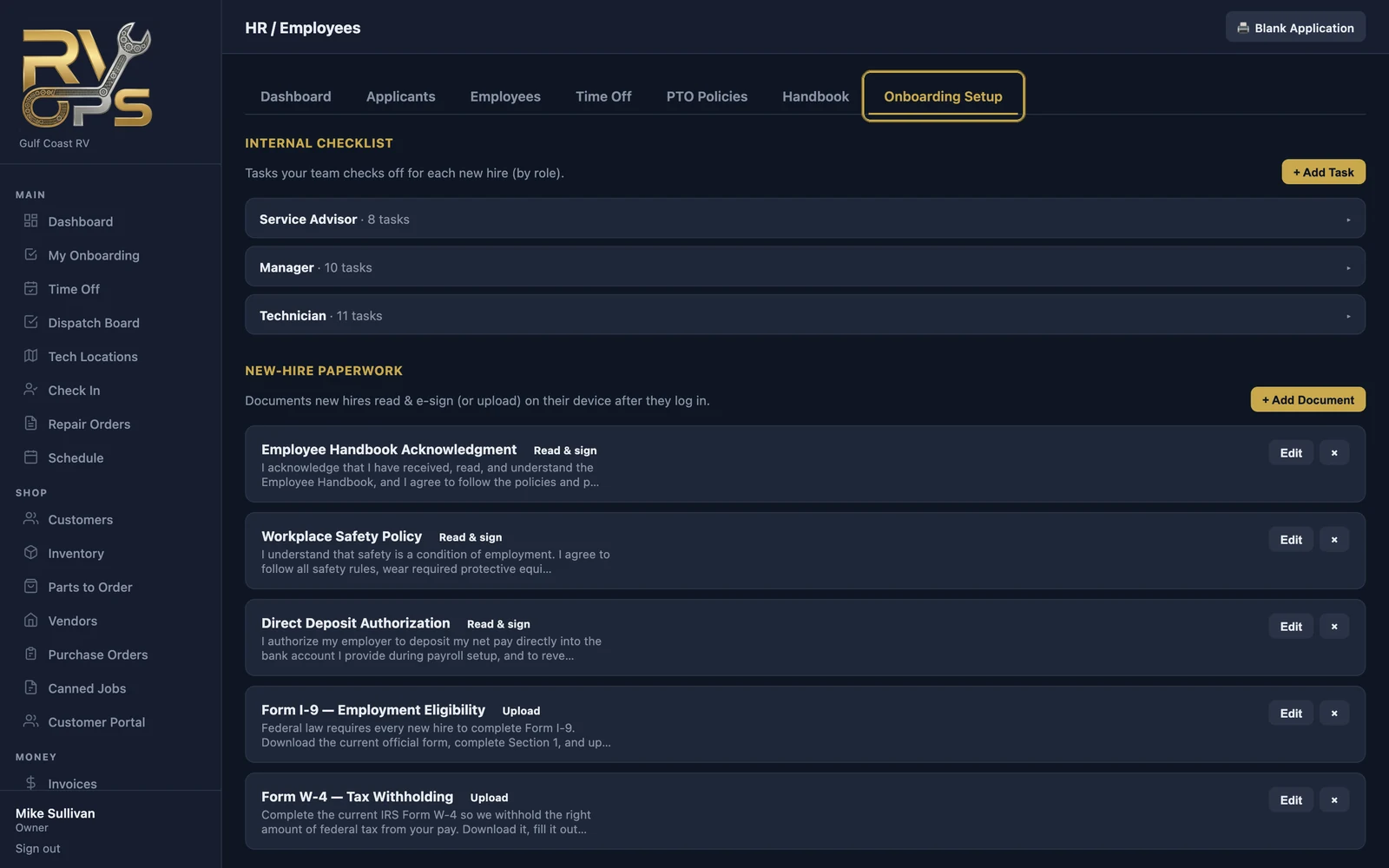
Under Onboarding Setup:
- Internal checklist — tasks your team checks off for each new hire, by role (order uniform, set up tools, safety walk-through…).
- New-hire paperwork — documents the new hire reads and e-signs, or uploads, on their own device after they first log in: handbook acknowledgment, safety policy, and anything else you add.
When a new hire logs in for the first time and sets their password, MarineOps walks them straight into their paperwork (My Onboarding).
Employee files
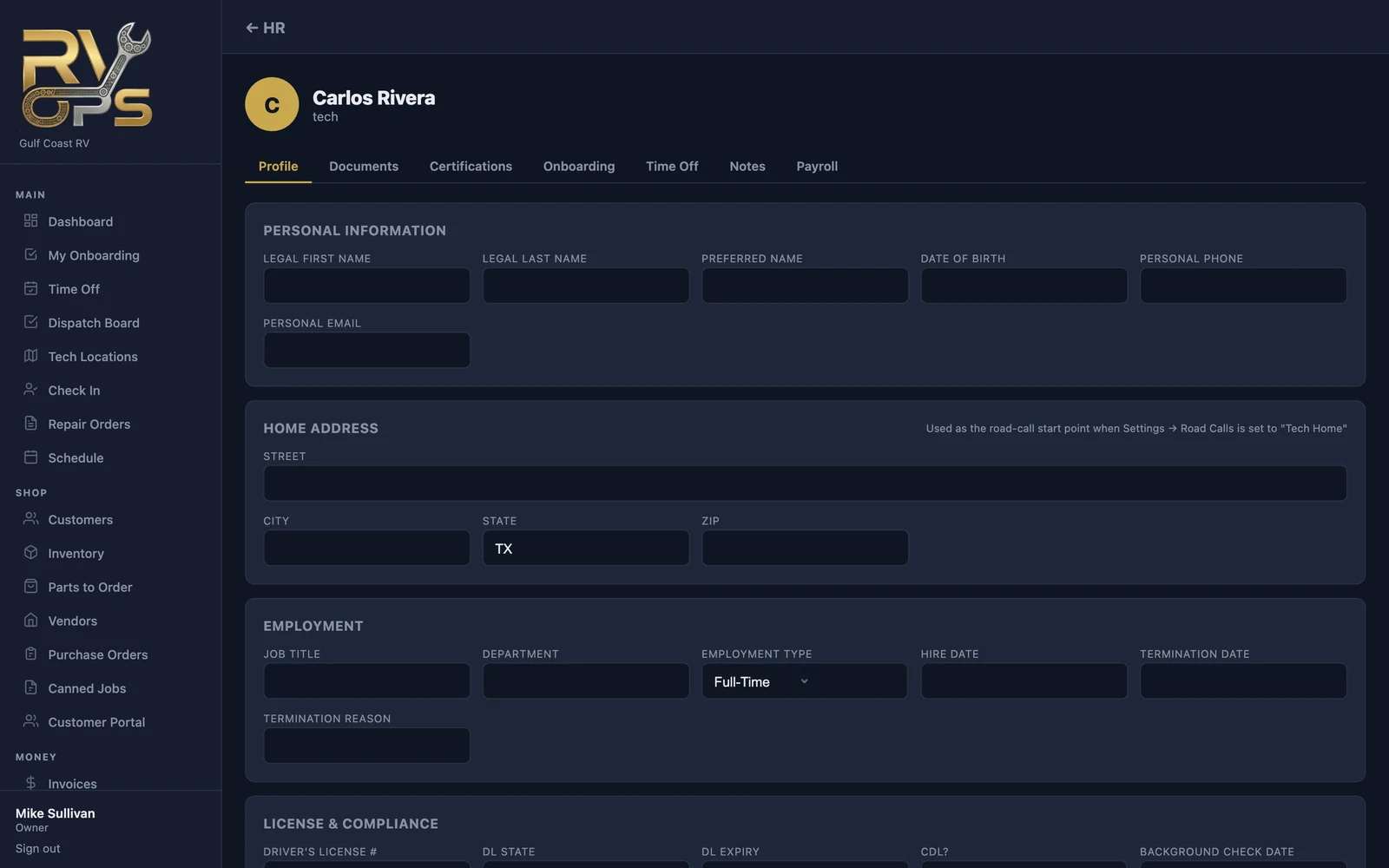
Open an employee from Employees to see their file: profile and emergency contacts, documents (I-9, W-4, licenses — stored privately), certifications with expiry dates, onboarding progress, time off, private notes and pay.
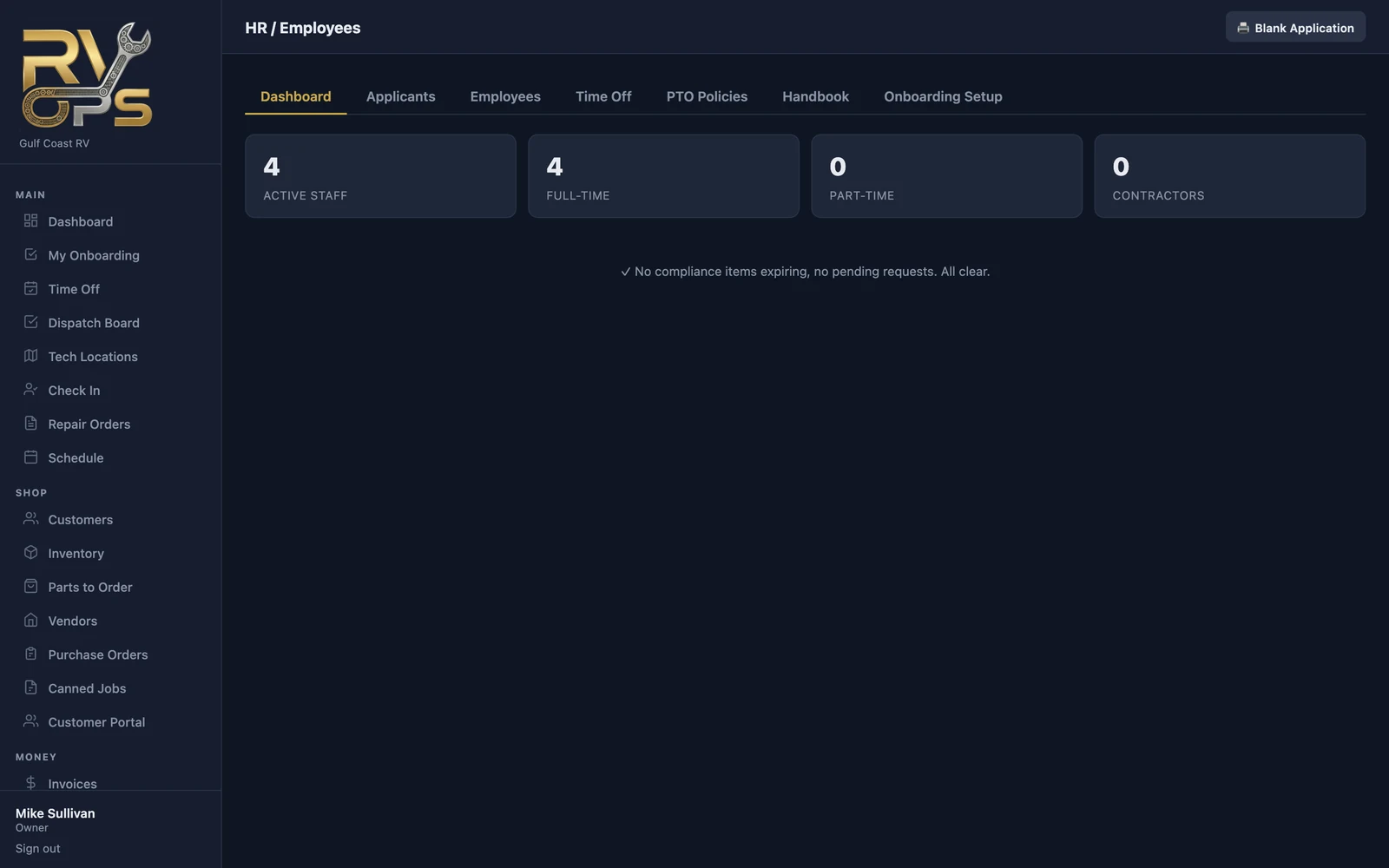
The HR dashboard warns you before certifications, driver's licenses or other compliance items expire.
Time off
- Create your policies under PTO Policies (for example "Hourly Techs" and "Salary / Managers").
- Assign each employee a policy on their file's Time Off tab.
- Employees request time off from Time Off in their menu; you approve or deny under HR → Time Off, and balances update.
Handbook
Upload your employee handbook under Handbook. Employees acknowledge it as part of onboarding, and the acknowledgment is saved to their file.