 MarineOps
 Checking In a boat
Check In is a six-step walk-through for a boat that pulls in without an appointment. In a couple of minutes at the counter it creates (or finds) the customer and the boat, writes up their concerns, records existing damage with photos, captures their signature and opens the repair order.
Step 1 — Customer
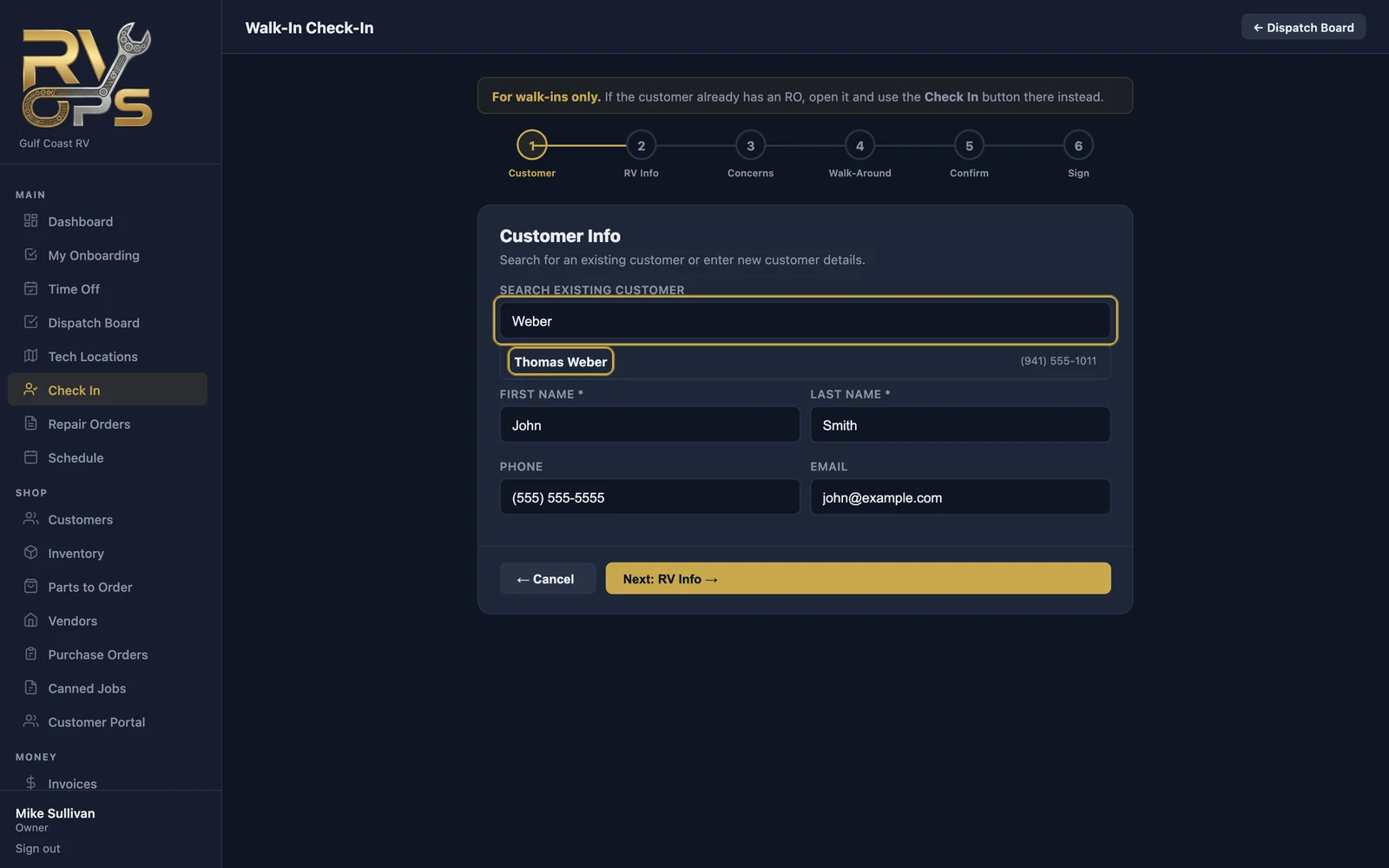
Open Check In in the left menu. Type a name or phone number in Search existing customer and click them, or fill in first name, last name, phone and email for a new customer.
Step 2 — boat information
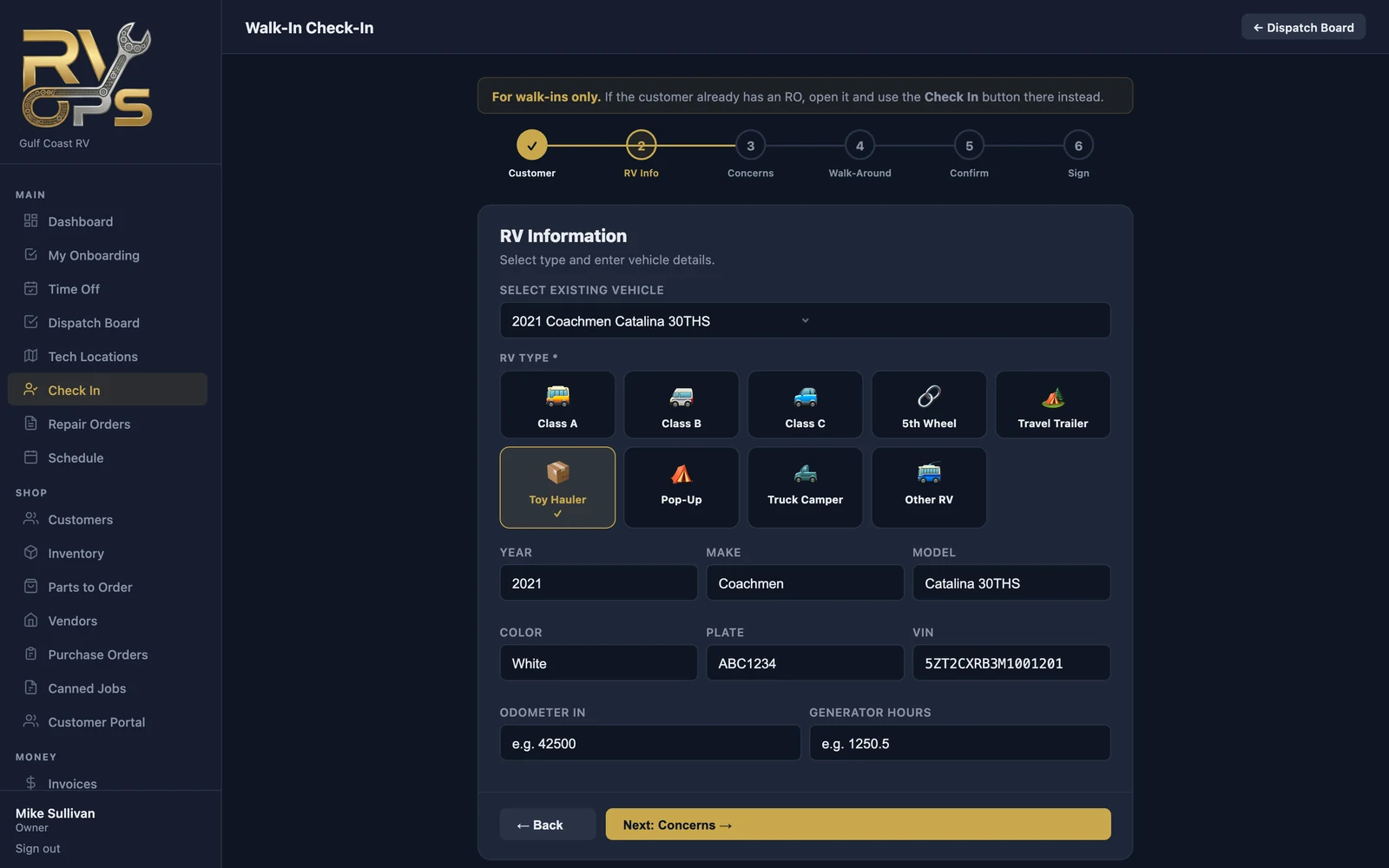
Pick one of their boats from Select existing vehicle, or choose the boat type (Class A, Class B, Class C, 5th Wheel, Travel Trailer, Toy Hauler, Pop-Up, Truck Camper or Other) and enter the year, make, model, color, plate and HIN. Add the engine hours and generator hours while you're standing next to it.
Step 3 — Concerns
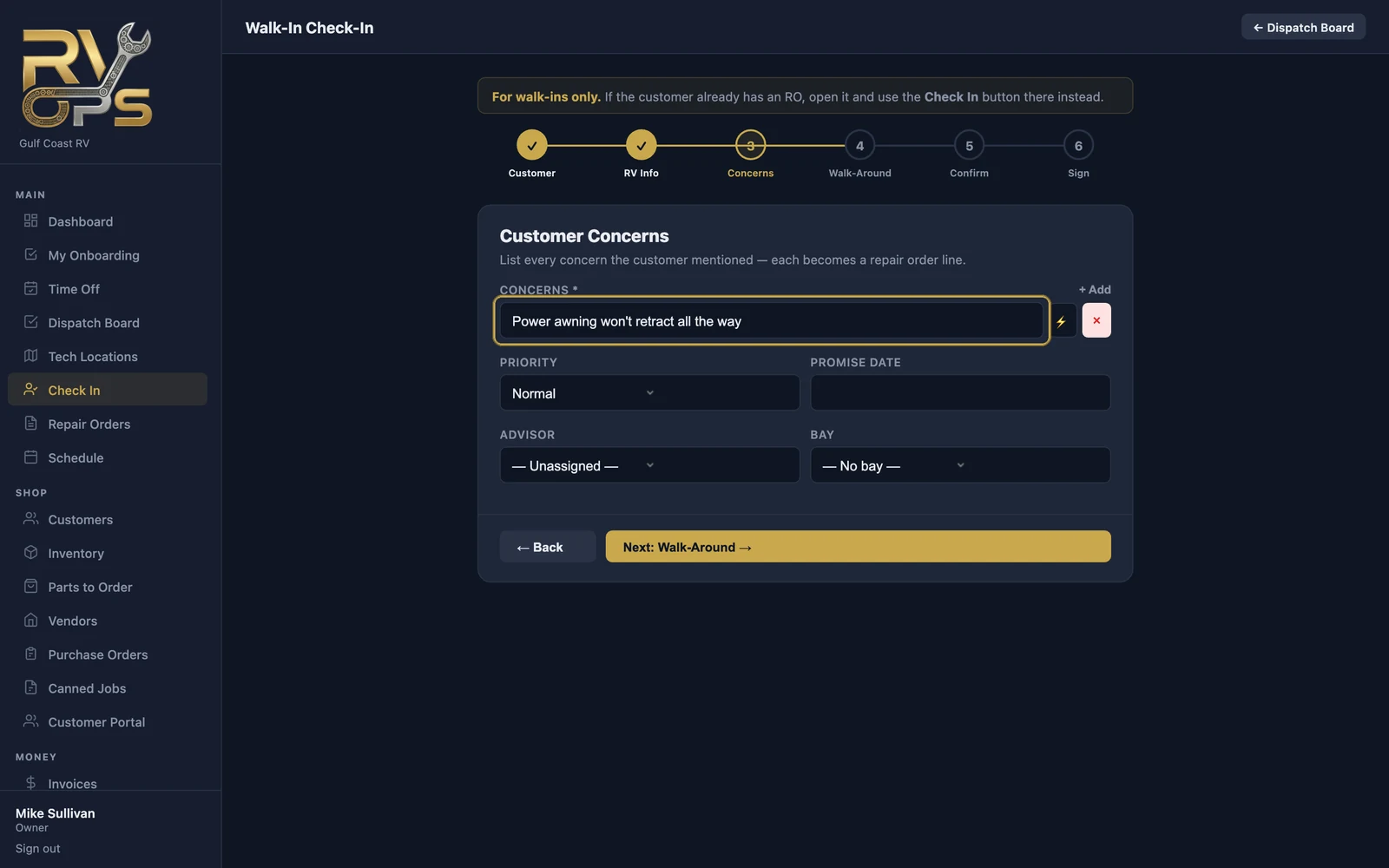
Type each thing the customer mentions as its own line — click + Add for another. Each line becomes a concern on the repair order. On Pro and up, the ⚡ button drops a canned job in instead. Set the priority, promise date, service advisor and bay if you know them.
Step 4 — Walk-around
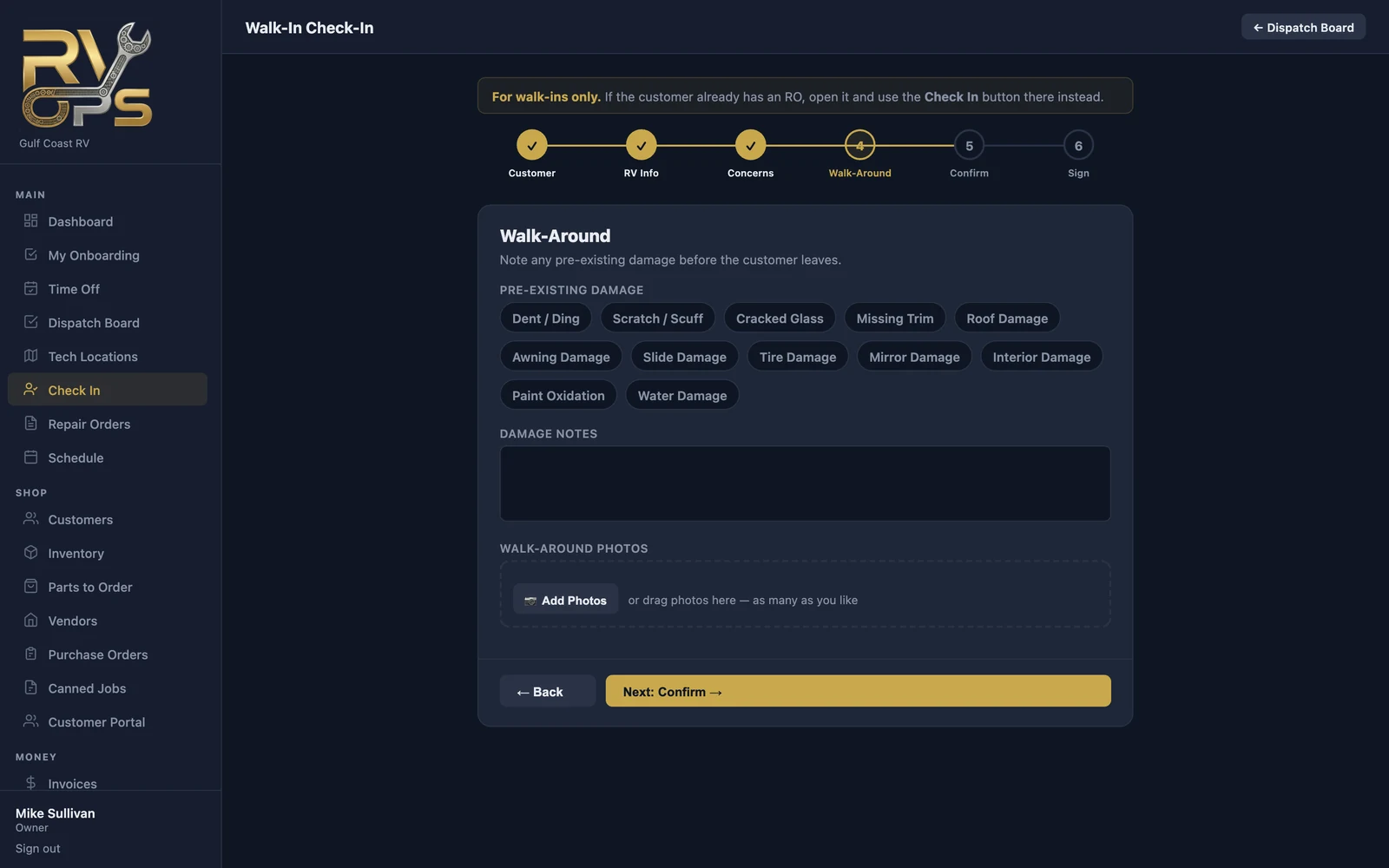
Walk around the boat with the customer. Tap any pre-existing damage you see (dents, scratches, cracked glass, roof, awning, slide, tire, mirror, interior, paint oxidation, water damage), add notes, and click 📷 Add Photos to take as many walk-around pictures as you like. On a computer you can drag photos in.
Step 5 — Confirm
Check the customer, boat and concerns one last time.
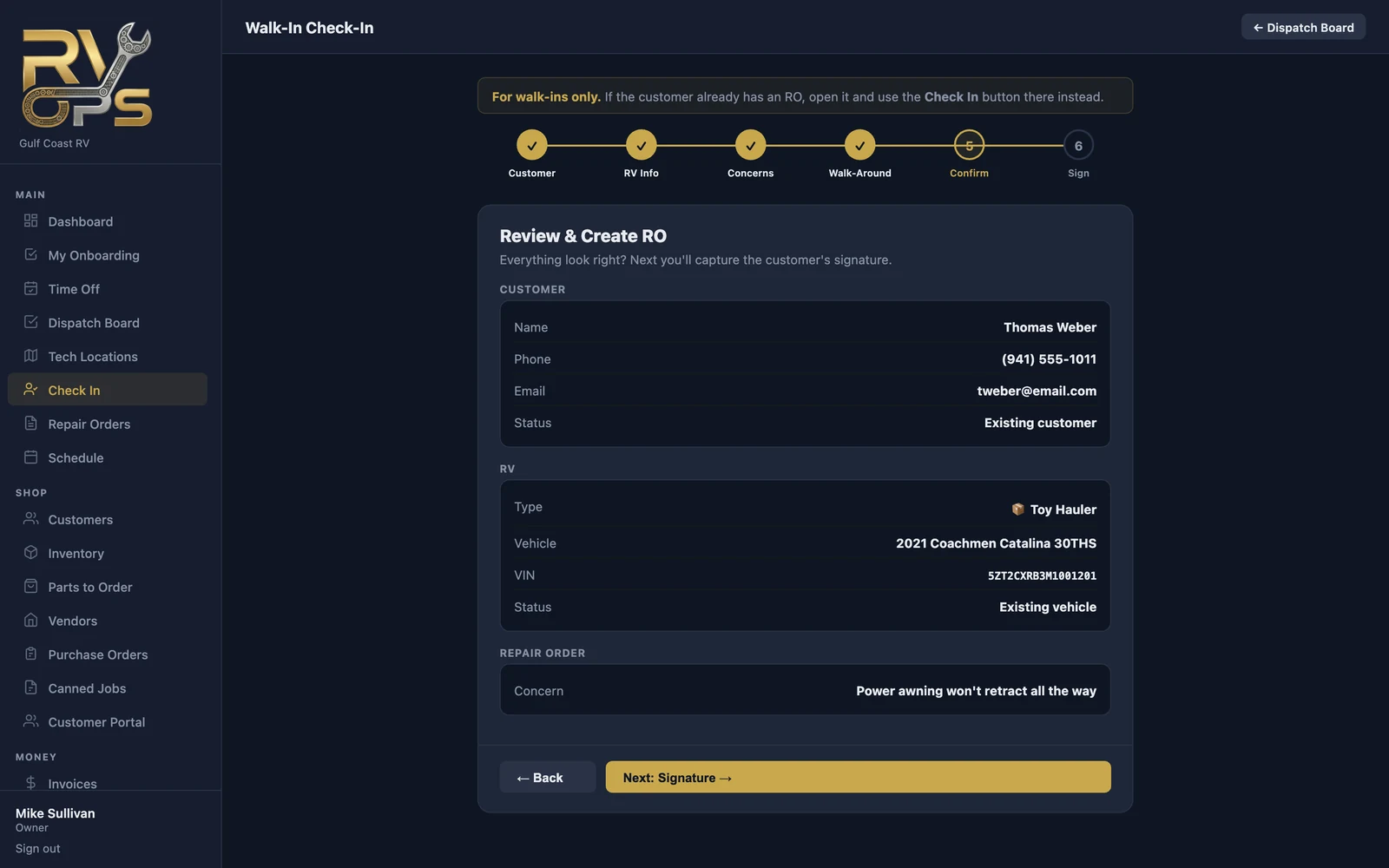
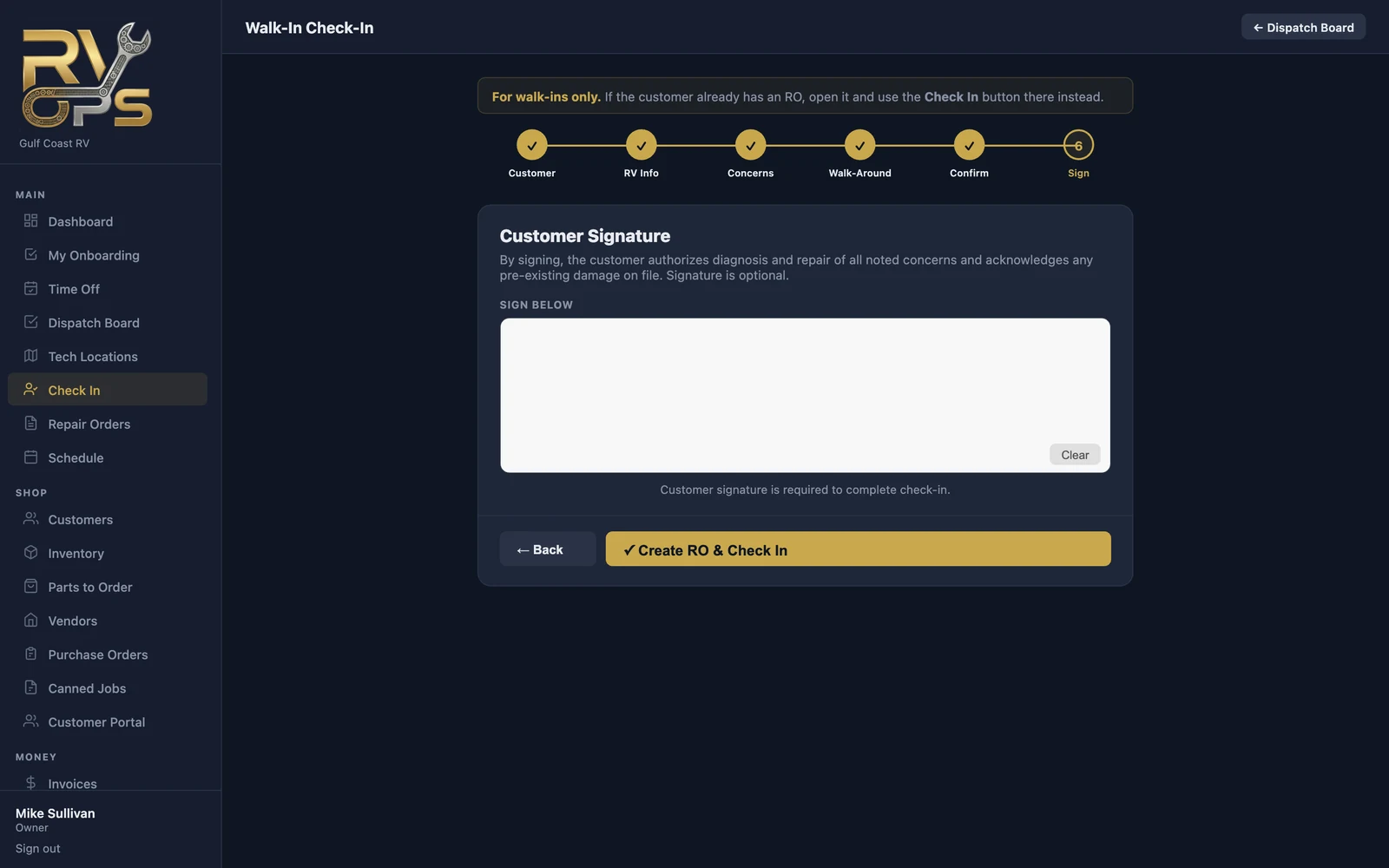
Step 6 — Signature
Hand the customer the screen (or tablet) to sign. Signing authorizes diagnosis and repair of the listed concerns and acknowledges the damage on file. Click ✓ Create RO & Check In and the repair order opens, status Checked In.
Key tags print automatically
With a Zebra printer set up, MarineOps can print the key tag (and a window sticker) the moment check-in finishes. Choose what prints under Settings → Shop Config → Zebra Label Printer → Auto-Print on Check-In. See Key Tags & Zebra Printers.