 MarineOps
 Help Center › Money & Reports
QuickBooks Online
Connect QuickBooks and send invoices automatically.
Included in: Pro plan and up
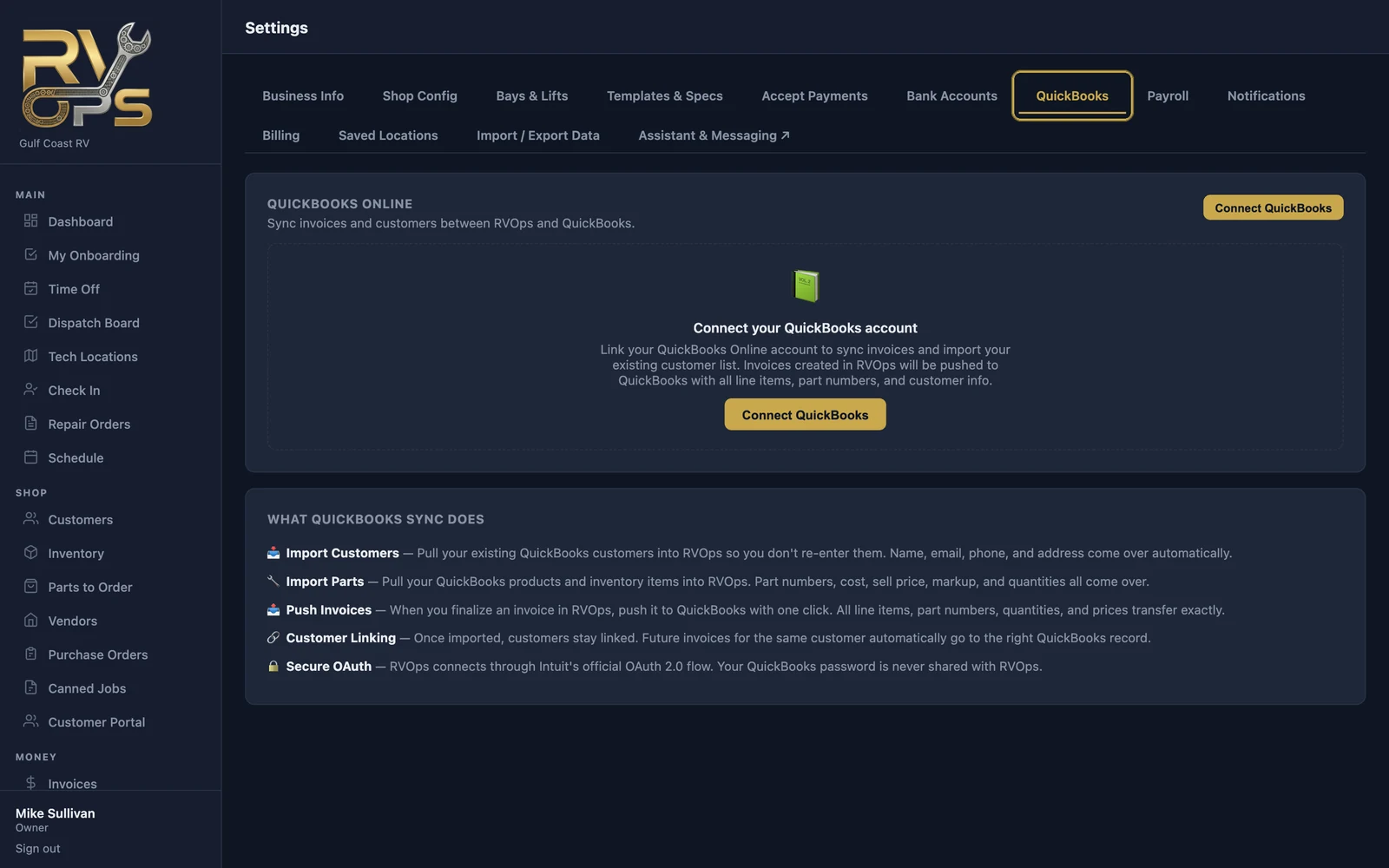
Connect QuickBooks Online and MarineOps sends every invoice there — line items, part numbers, quantities, prices, customer and payment — so you never type an invoice twice. You can also pull your existing QuickBooks customers and products into MarineOps when you start.
Connect
- Open Settings → QuickBooks and click Connect QuickBooks.
- Sign in to QuickBooks (Intuit's own sign-in page — MarineOps never sees your password) and choose your company.
- You're sent back to MarineOps, connected.
Bring in what's already in QuickBooks
- Import Customers from QuickBooks — names, emails, phones and addresses. Customers stay linked, so their future invoices go to the right QuickBooks customer.
- Import Parts from QuickBooks — products and inventory items with part numbers, cost, price and quantities.
You'll see a preview before anything is imported.
Sending invoices
- Automatically: tick Send invoices to QuickBooks automatically whenever a payment is taken. An invoice goes over the first time it gets a payment — paid in full or not (a deposit, a warranty deductible, a part payment) — with the payment method and reference number, so it's in QuickBooks when you make the deposit. Invoices already in QuickBooks just get their new payments added; internal invoices are skipped.
- By hand: send any invoice (or an estimate from a repair order) to QuickBooks from its page.
The QuickBooks tab keeps a sync log of everything sent, so you can see what went over and when.
If you void or change an invoice in MarineOps after it was sent, make the matching change in QuickBooks.
Still stuck? Send us a message (or email [email protected]) and tell us what you were trying to do — we answer within one business day.