 MarineOps
 Help Center › Repair Orders
Adding Parts
Pick from your price book or type a part in, and track ordered parts.
Included in: Every plan
On this pageAdd a part from your listA part that isn't in your list yetParts you need to orderTechs and pricing
Parts are added to each concern from your parts list (price book), so every part has a part number, a cost and a sell price, and your inventory counts stay right. A part that isn't in your list yet can be added to it right from the repair order.
Add a part from your list
- In the concern, click + Add Part.
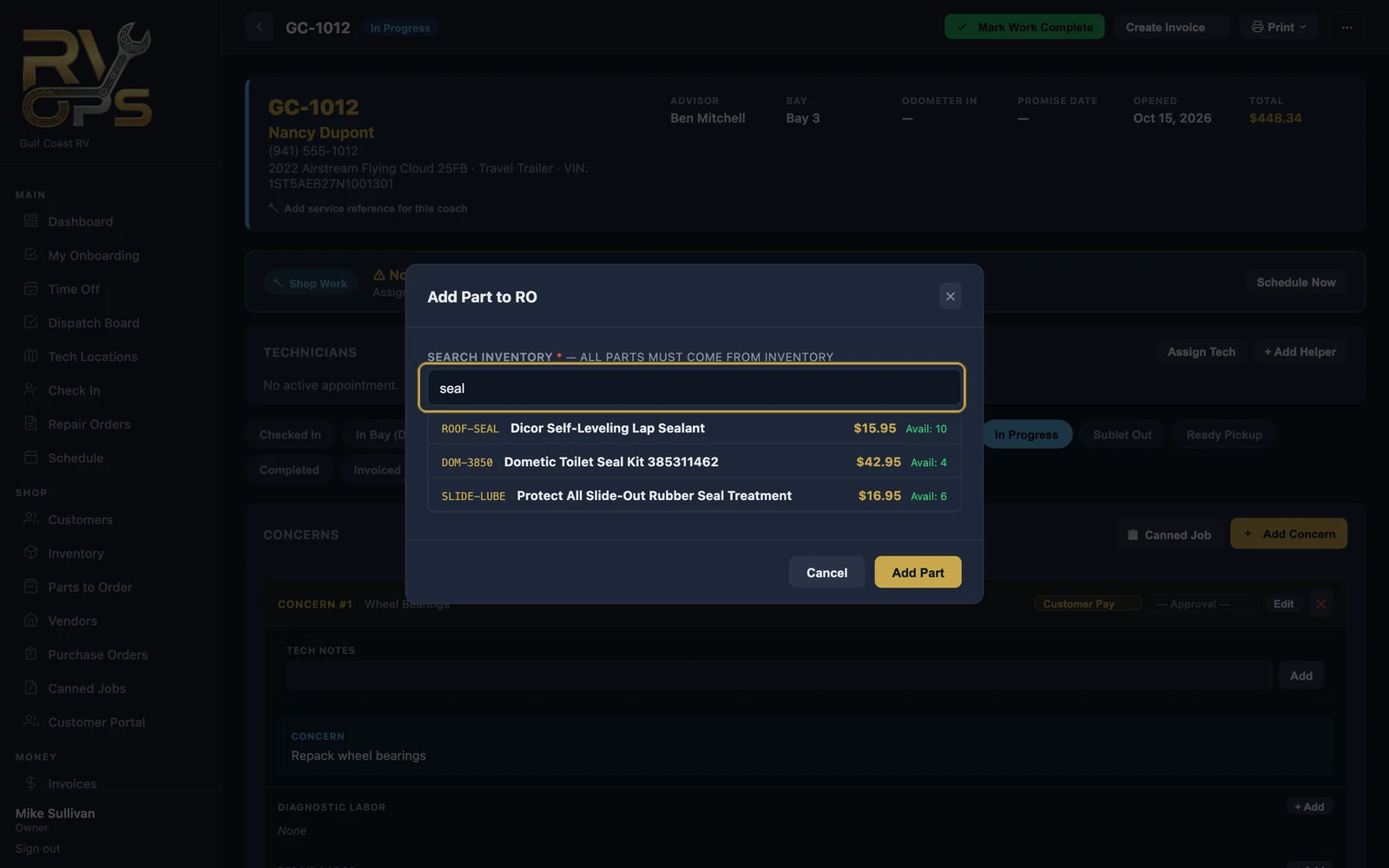
- Start typing a part number, name or UPC. Matching parts appear with their price and how many you have on hand.
- Click the part, set the quantity, and click Add Part.
A part that isn't in your list yet
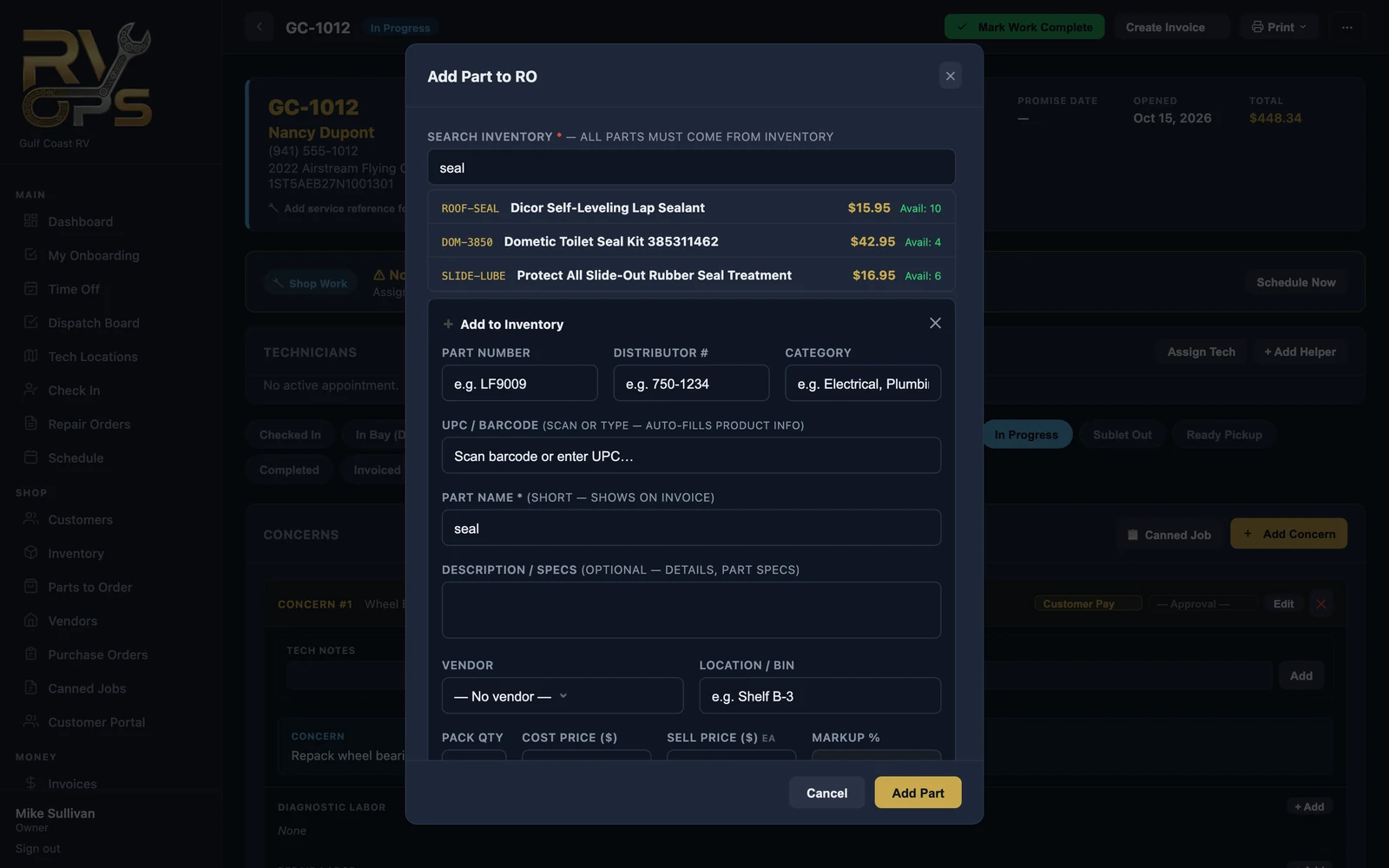
- Search for it first. If nothing comes up, click + Not in inventory? Add it now.
- Fill in at least the part name (that's what prints on the invoice), the cost and the sell price — or enter a markup % and let MarineOps work out the sell price. Scan or type a UPC and MarineOps fills in the product details for you when it can.
- Untick Normally stocked for a one-time special-order part.
- Enter the quantity for this RO and save. The part is added to your list and to the repair order in one step.
Parts you need to order
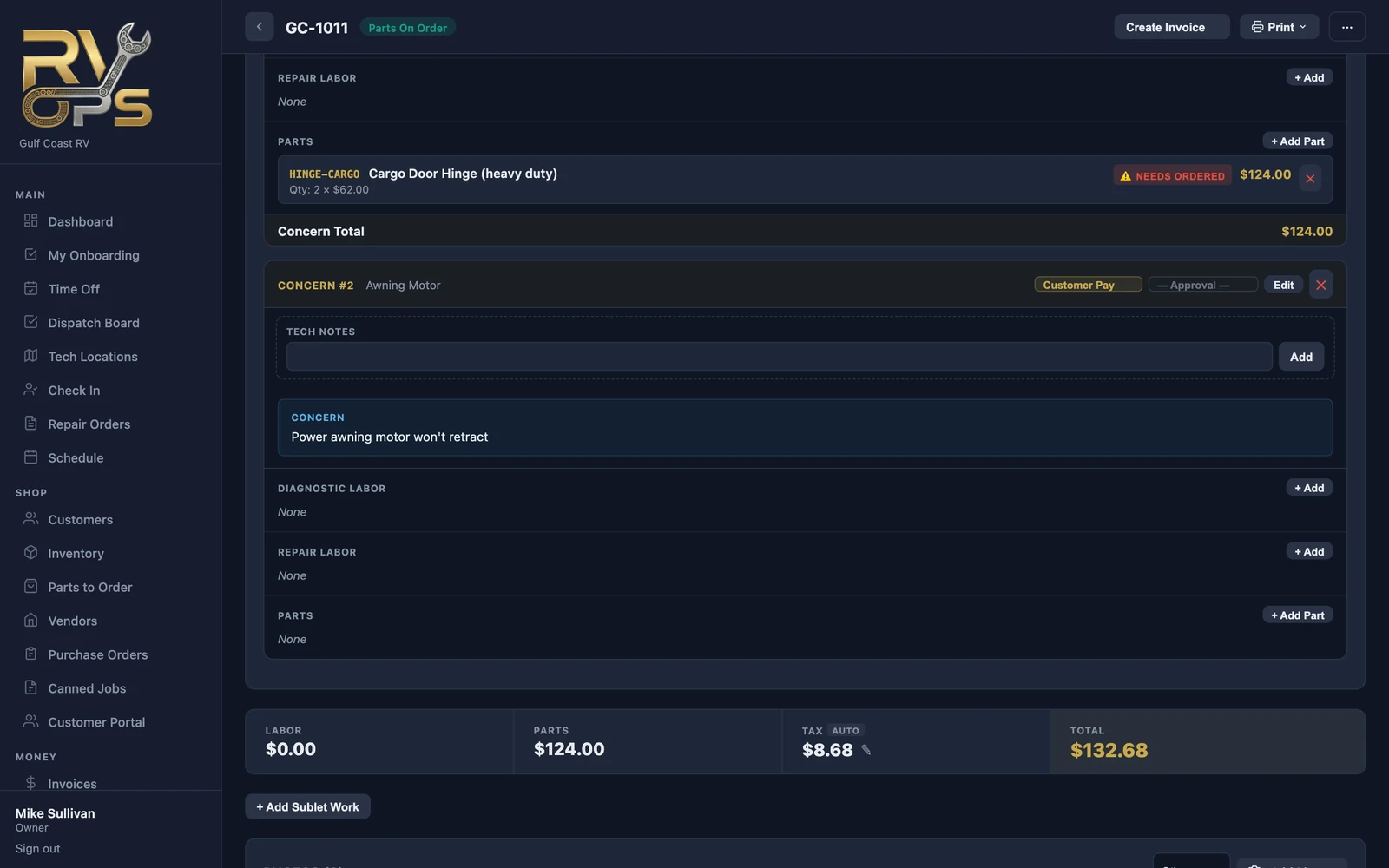
When a part isn't on the shelf, its line shows NEEDS ORDERED and the RO shows a red banner listing the parts to order. On Pro and up, those parts also land on Parts to Order and can be put on a purchase order; when they're received, the RO updates by itself.
Techs and pricing
You can let techs add parts without seeing your prices — turn on "Add parts to a repair order (no pricing shown to tech)" in staff permissions. Parts they add use the price in your parts list, and anything new waits at $0 for the office to price.
Core charges, shop supplies and freight are covered in Shop Supplies & Cores.
Still stuck? Send us a message (or email [email protected]) and tell us what you were trying to do — we answer within one business day.