 MarineOps
 Help Center › Invoices & Payments
Voids, Refunds & Corrections
Fix an invoice or payment the right way.
Included in: Every plan
Mistakes happen. MarineOps keeps a clean record by voiding instead of erasing, so your reports and books always add up.
Change an unpaid invoice
- Fix the work on the repair order, then on the invoice choose ⋯ → ↺ Sync from RO.
- Or adjust the discount, shop supplies or tax right on the invoice.
Void an invoice
- Open the invoice and click ⋯ → Void Invoice.
- Confirm.
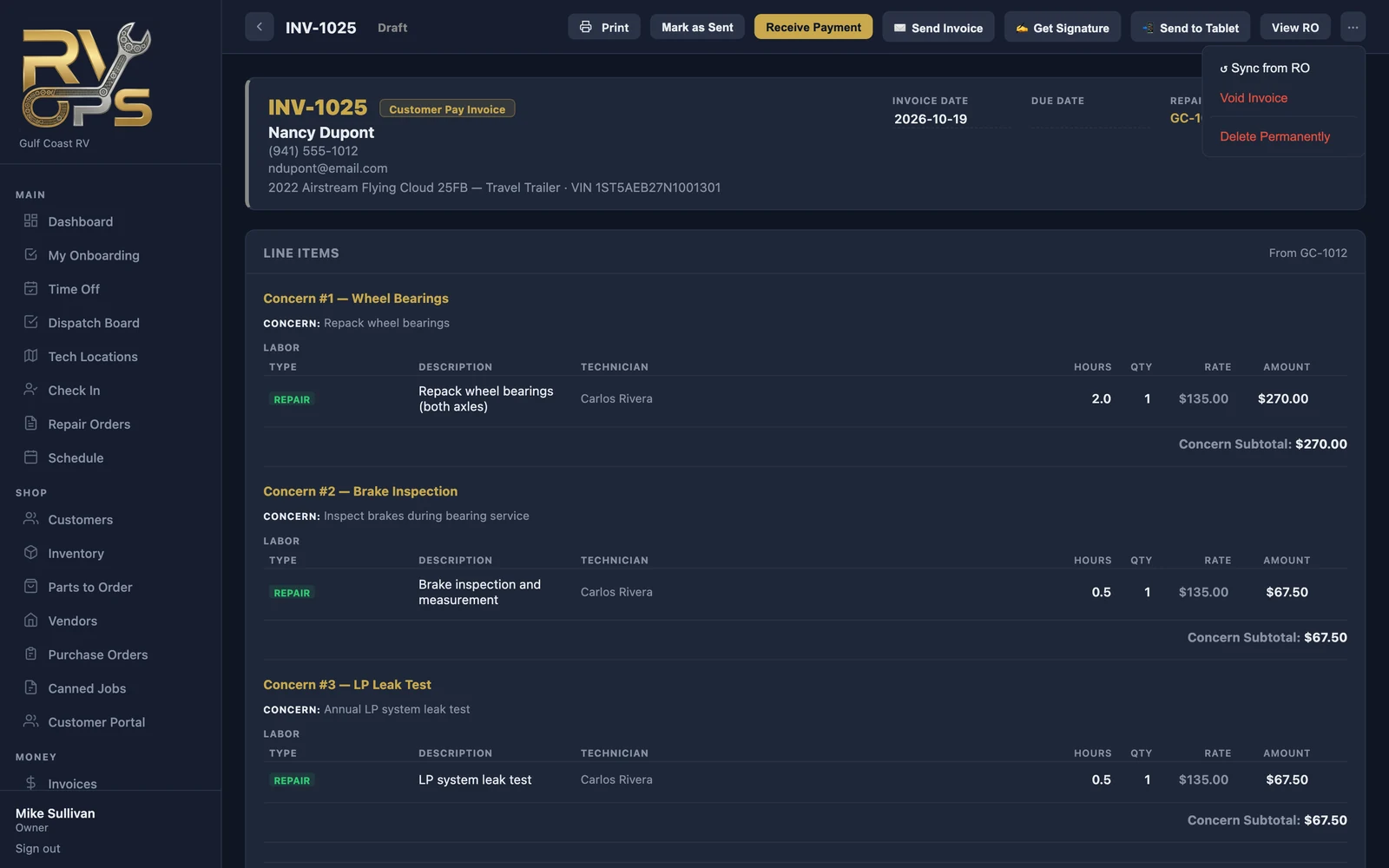
What voiding does:
- The invoice stays in your list marked Void — a permanent record that it existed.
- Its jobs are released back to the repair order, so you can invoice them again correctly.
- If it was paid, the parts are returned to stock.
- For a parts-only invoice, those parts become billable again.
Delete Permanently is for a draft created by mistake that nobody has seen. Use void for anything that was sent or paid.
Void a payment
Recorded the wrong amount or method? On the invoice, click 🗑 Void next to that payment, then record it again correctly. The invoice goes back to showing a balance.
Refund a card payment
Card payments taken through Square or Stripe can't just be voided — the money has to go back to the customer's card.
- On the invoice, click ↩ Refund next to the card payment.
- Leave the amount blank for a full refund, or enter a smaller amount for a partial one.
- Click Issue Refund. The refund goes to Square or Stripe and is recorded in MarineOps as a negative payment. A full refund marks the invoice Refunded and returns its parts to stock.
The customer usually sees the money back on their card in 5–10 business days. Stripe keeps its original processing fee on a refunded charge; check Square's current policy for Square refunds.
Refunded straight from Stripe's own dashboard? MarineOps records it automatically. From Square's own dashboard? Record it in MarineOps yourself by voiding the payment — it's better to refund from MarineOps so it happens in one step.
If you use QuickBooks and the invoice was already sent there, make the matching change in QuickBooks too.
Still stuck? Send us a message (or email [email protected]) and tell us what you were trying to do — we answer within one business day.