 MarineOps
 Canned Jobs & Smart Recipes
A canned job is a job you build once — the description, the labor hours and the parts — and then drop onto any repair order in one click. An oil change, a roof reseal, a generator service, winterizing: the jobs you do every week shouldn't be typed from scratch every time.
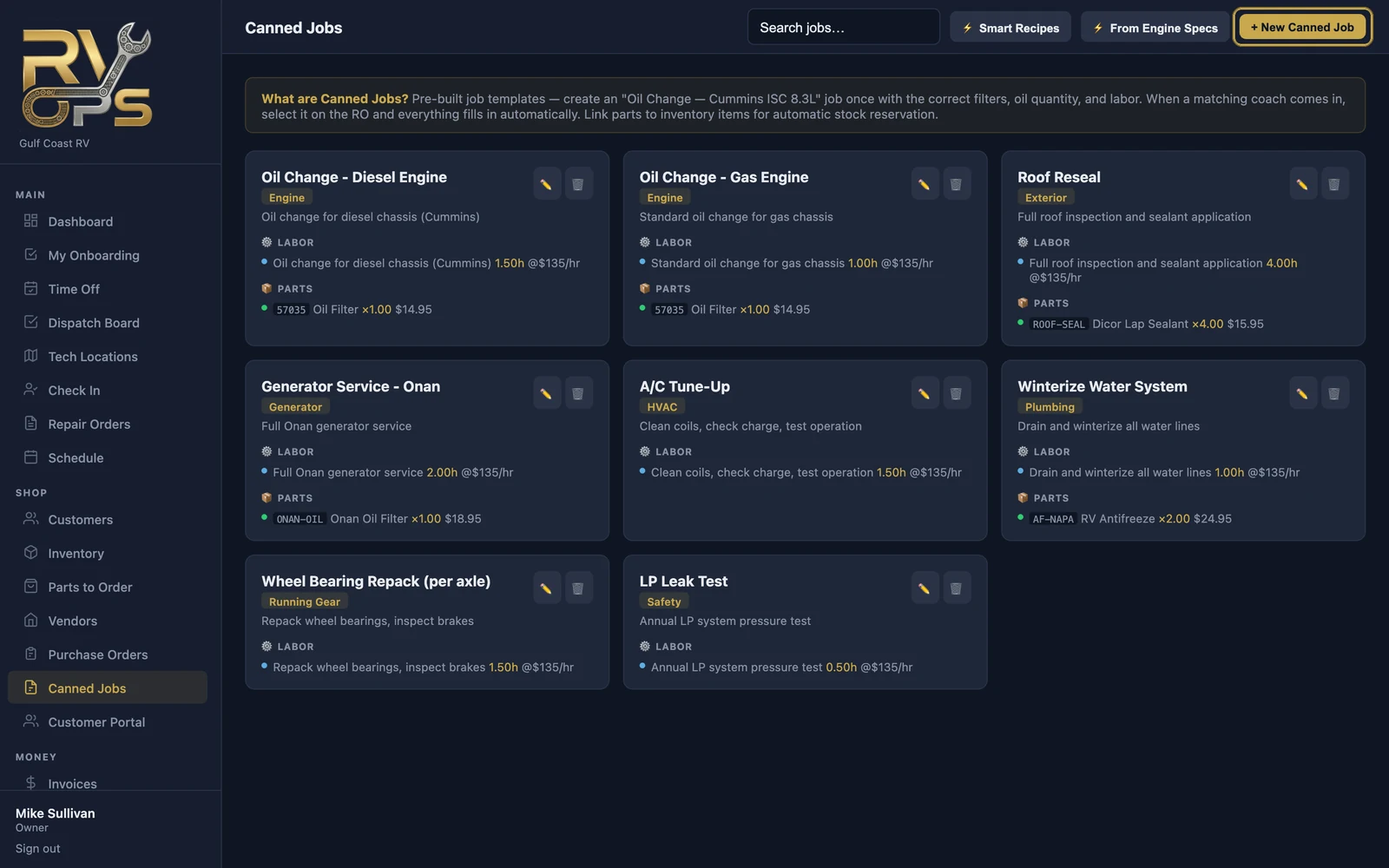
Build a canned job
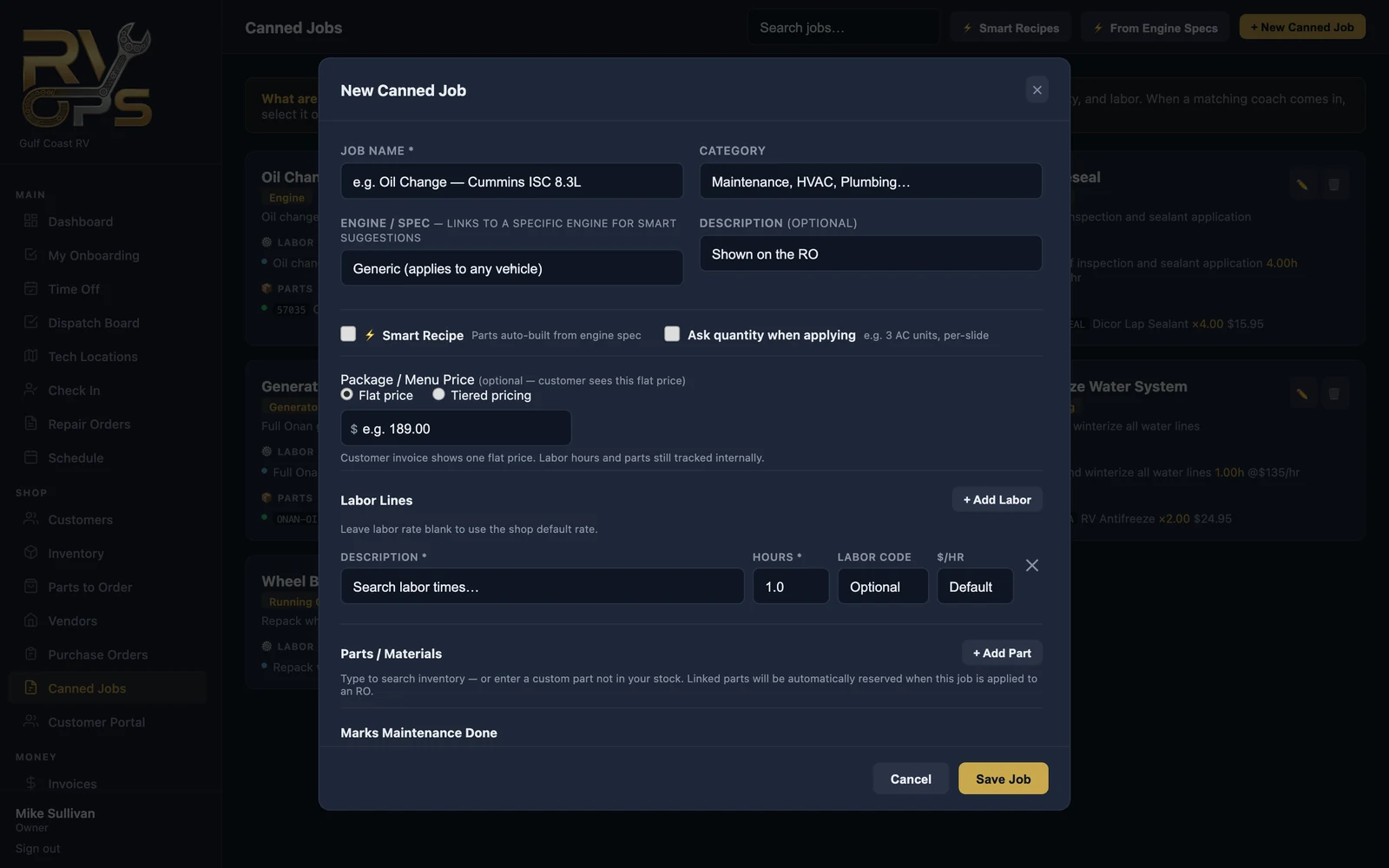
- Open Canned Jobs and click + New Canned Job.
- Give it a name and category.
- Optional: tie it to an engine so it's suggested for coaches with that engine.
- Under Labor Lines, click + Add Labor and enter each labor line and its hours. Leave the rate blank to use your shop rate.
- Under Parts / Materials, click + Add Part and pick parts from your list. Parts linked to inventory are reserved automatically when the job is applied.
- Optional: a package / menu price so the customer sees one flat price (flat or tiered).
- Tick Ask quantity when applying for jobs priced per unit — per A/C unit, per slide, per axle.
- Save.
Use it on a repair order
- On the RO, click 📋 Canned Job in the Concerns section and pick the job. A new concern is created with all its labor and parts.
- To add a canned job to an existing concern, click Edit on the concern and use ⚡ Apply Canned Job to this concern.
- You can also add canned jobs while checking in a boat or booking an appointment (the ⚡ button).
Smart recipes
A ⚡ Smart Recipe builds its parts list from the boat's engine when it's applied — the right oil filter, fuel filters and oil quantity for that coach, pulled from your parts cross-references. Click ⚡ Smart Recipes to create starter recipes, or ⚡ From Engine Specs to create oil change and service jobs for every engine you have specs for (you fill in your prices).
Marking maintenance done
A canned job can be linked to maintenance items (like "Engine Oil & Filter"). Check them under Marks Maintenance Done at the bottom of the job. When an RO with the job is completed, each item is marked serviced (with the RO's date and engine hours) on the boat's maintenance schedule, so the next reminder is timed right. See Maintenance Records & CampSavvy for the whole flow.