 MarineOps
 Help Center › Your Team
The Time Clock
Shifts, lunches and fixing missed punches.
Included in: Starter plan and up
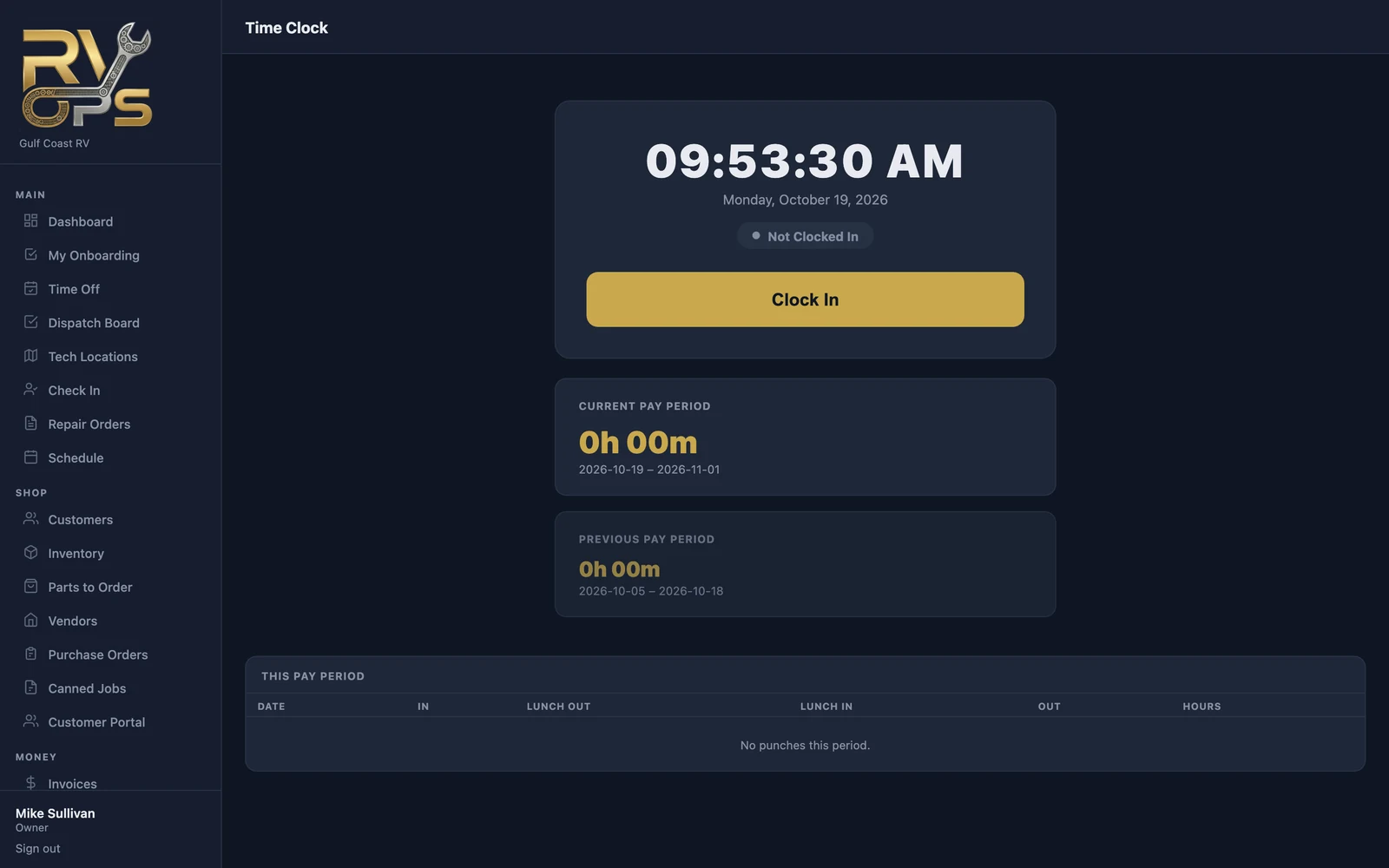
The time clock records when each person starts and ends their shift and takes lunch. It's the hours side of payroll; how long techs spend on each job is tracked separately (see Clocking On Jobs & Flag Hours).
Clocking in and out
- On a computer, open Team → Time Clock. In the tech app, open the Timeclock tab.
- Tap Clock In at the start of the shift.
- Tap Lunch Out and Lunch In around lunch.
- Tap Clock Out at the end of the day.
Fixing a missed punch
Forgot to clock out? A manager opens Team → Timesheets, finds the person, and edits the punch or clicks + Add Punch. Every change is logged. Who can do this is controlled by the "Add, edit & delete time punches" permission (staff permissions).
Pay periods
Set your pay period once on Timesheets → ⚙ Pay Period Settings: weekly, bi-weekly, semi-monthly (1st–15th / 16th–end) or monthly. Timesheets and pay reports follow it.
Still stuck? Send us a message (or email [email protected]) and tell us what you were trying to do — we answer within one business day.