 MarineOps
 Help Center › Your Team
Clocking On Jobs & Flag Hours
Track actual time against flagged time on every job.
Included in: Starter plan and up
Most marine shops bill flat-rate (book) hours but want to know how long jobs really take. MarineOps tracks both on every labor line:
| What it is | Where it comes from | |
|---|---|---|
| Flag hours | The hours you bill — the book time | The labor line's flat rate hours |
| Clocked hours | How long the tech actually worked on it | The tech clocking in and out on that labor line |
| Efficiency | Flag hours ÷ clocked hours | Calculated — over 100% means the tech beat book time |
Clocking on a job
- The tech opens the repair order — usually in the tech app.
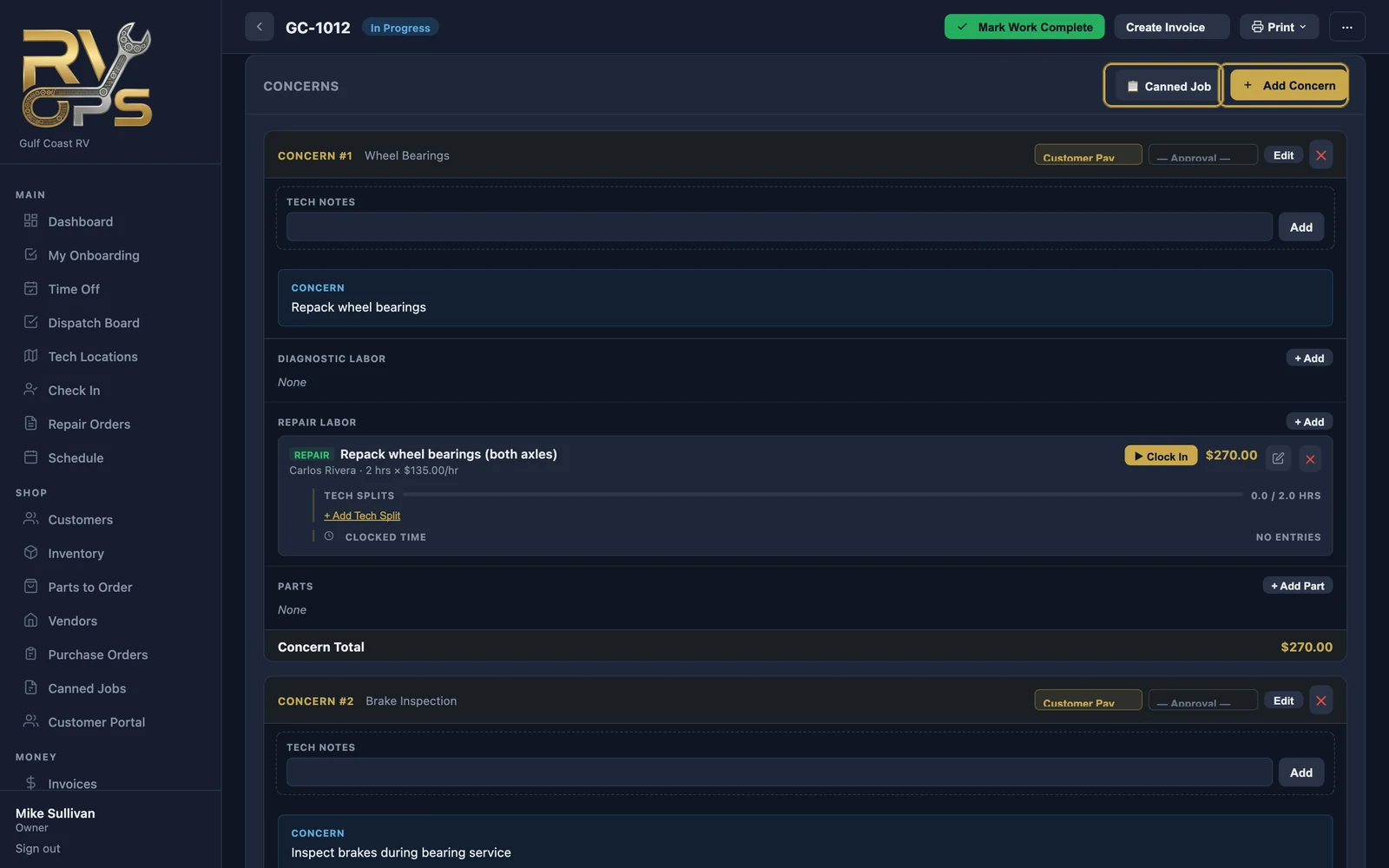
- On the labor line they're starting, they tap ▶ Clock In.
- When they stop — done, waiting on parts, lunch — they tap Clock Out on that line before starting the next job.
The clocked time shows under the labor line on the RO (Clocked Time).
Two techs, one job
Use + Add Tech Split on the labor line to divide the flag hours between techs. Each tech is credited with their share on pay reports (see Adding Labor).
Planning with flag hours
Each tech has a daily flag hour capacity on their staff record. The Tech Board compares the flag hours booked to that capacity, so you can see who has room.
Still stuck? Send us a message (or email [email protected]) and tell us what you were trying to do — we answer within one business day.