 MarineOps
 Welcome to MarineOps
MarineOps runs your whole boat service operation from one place: repair orders, estimates, road calls, parts, invoicing, payments and your team's time. It was built inside a working marine repair shop, so it follows the way a service department actually works — from the moment a boat pulls in to the moment the customer pays.
The three parts of MarineOps
| Part | Who uses it | Where |
|---|---|---|
| The web app | Owners, service writers, managers, the office | Any computer at getrvops.com → Log In |
| The tech app | Technicians in the bay and on road calls | iPhone, iPad and Android phones and tablets |
| The customer portal | Your customers | A link you text or email them — no app or password needed |
All three share the same information in real time. When a tech adds a photo on their phone, it shows up on the repair order at the front counter a second later. When the customer approves an estimate in the portal, the tech sees it right away.
Your dashboard
When you log in you land on the Dashboard: open repair orders, money collected this month, boats waiting on parts, boats ready for pickup, estimates waiting on the customer, today's appointments and the status of each bay.
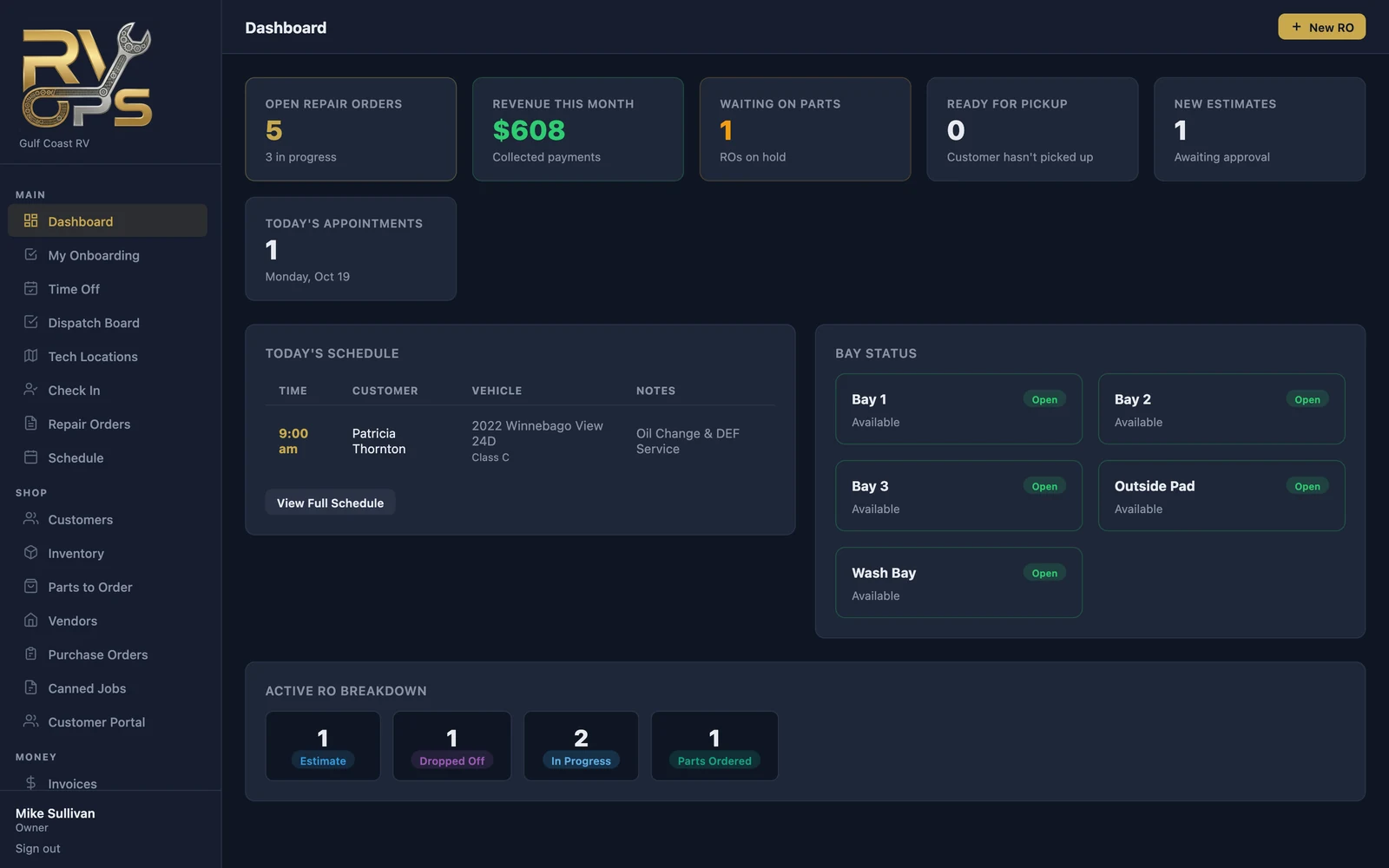
The menu on the left takes you everywhere else. It's grouped the way a shop thinks:
- Main — repair orders, check-in, schedule and dispatch
- Shop — customers, inventory, parts to order, vendors, purchase orders, canned jobs
- Money — invoices, transactions, reports
- Team — time clock, timesheets, pay, messages, staff and settings
How a job flows through MarineOps
- Book it — put the drop-off or road call on the schedule.
- Check it in — walk-around photos, the customer's signature and a key tag (boat check-in).
- Write the repair order — one concern per problem, with labor and parts (creating a repair order).
- Get approval — send the estimate; the customer approves line by line from their phone (estimates).
- Do the work — techs clock in on each job, add notes and photos, and order parts.
- Invoice and get paid — one click turns the RO into an invoice; take a card, cash, check or an online payment (invoicing).
Where to start
If you're setting up a new shop, go straight to the First-Day Setup Checklist. It walks you through everything to fill in before your first repair order, in order, and takes about 30 minutes.