 MarineOps
 Taking Payments
Every payment is recorded against an invoice, so your balances, reports and books are always right. You can take a card yourself, send the customer a link to pay on their own phone, or record cash, a check or a payment taken somewhere else.
Record a payment you've received
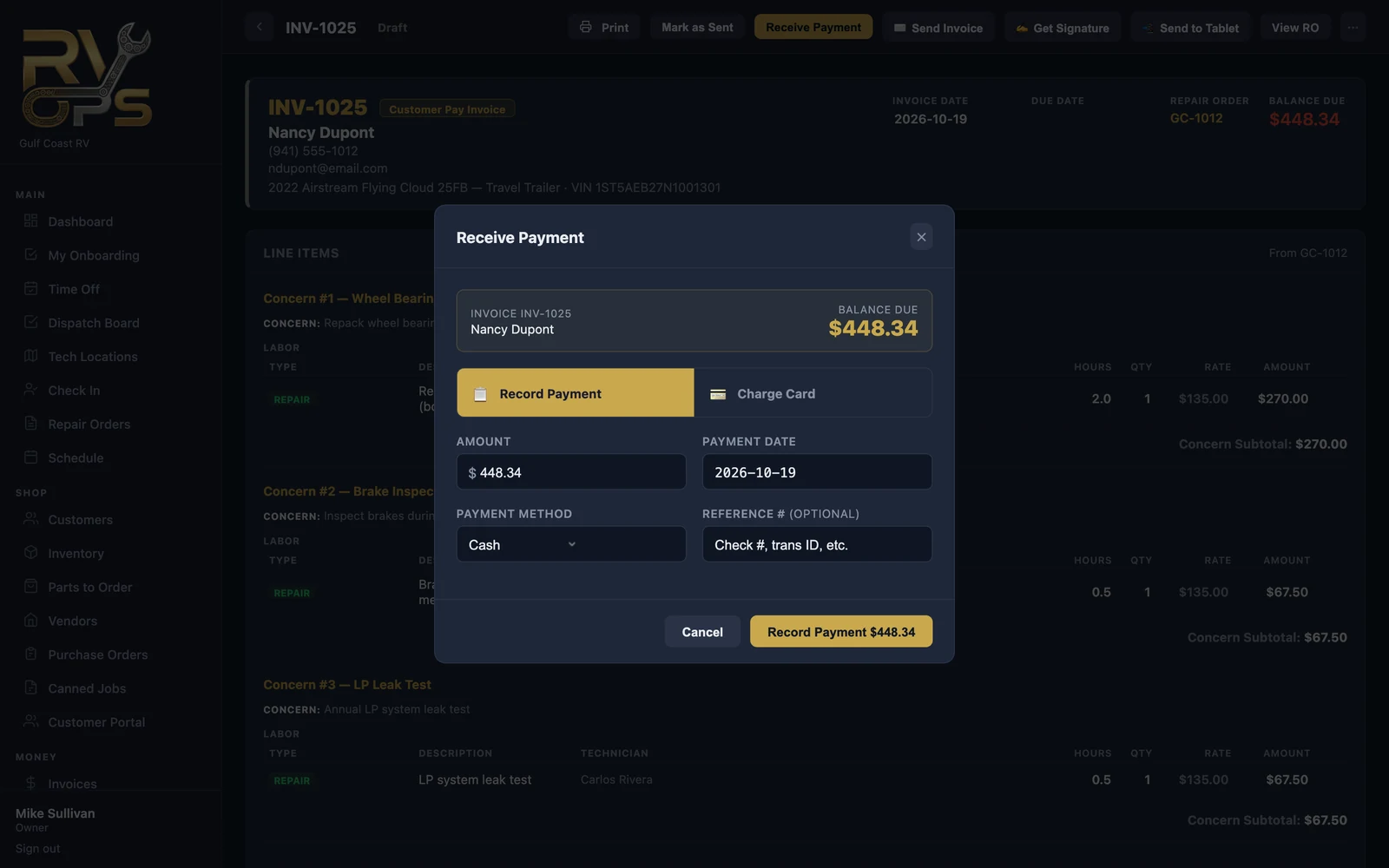
- Open the invoice and click Receive Payment.
- Stay on 📋 Record Payment.
- The amount fills in with the balance due — change it for a partial payment.
- Pick the payment method: Cash, Check, Credit/Debit Card, ACH / Bank Transfer, Tap to Pay or Other.
- Add a reference such as the check number, then click Record Payment.
Charge a card at the counter
With Square or Stripe connected (see Connecting Card Payments), choose 💳 Charge Card in the same window and enter the card. The money goes straight to your processor account and the payment is recorded for you.
Send a link to pay online
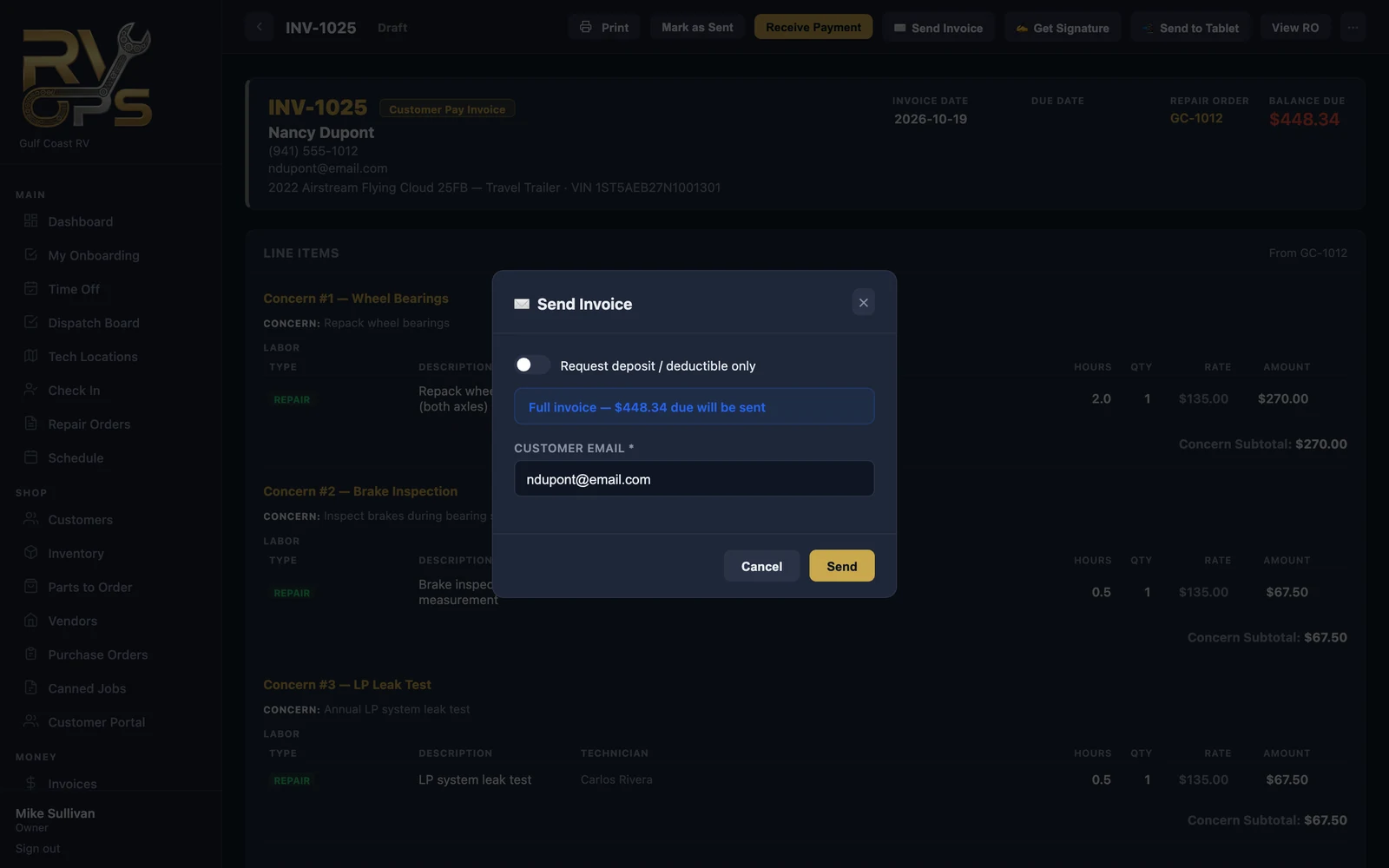
- Click ✉️ Send Invoice on the invoice.
- Check the customer's email. To collect only part of it — a deposit or an insurance deductible — choose Request deposit / deductible only and enter the amount.
- Click Send. The customer gets the invoice with a secure Pay button and can pay by card (or bank account, if you've turned on ACH) from any device.
When they pay, the payment records itself and the invoice turns Paid. Customers can also pay any open invoice from the customer portal.
Tap to Pay on a road call
In the tech app, open the invoice and tap Tap to Pay (Square). It hands the charge to the Square Point of Sale app on the same phone (install it from the App Store or Google Play); the customer taps their card or phone, and MarineOps records the payment when Square finishes. Your shop needs a Square account connected.
Using Stripe? Tap to Pay in the app isn't available with Stripe yet. On a road call, tap Send Pay Link in the app — the customer pays on their own phone and the invoice updates by itself — or key the card in later from the web version.
Customer signature at pickup
Click ✍️ Get Signature on the invoice to have the customer sign on screen, or 📲 Send to Tablet to put it on a counter tablet.
Passing card fees on
- Set the percentage under Settings → Shop Config → CC Processing Fee. Tick Show CC fee notice on estimates so customers know before they approve work, and Charge sales tax on the card fee if your state taxes it (Florida does).
- On each invoice the customer will pay by card, switch on CC Fee. It's added as a Card Processing Fee line on the invoice. Leave it off for cash and check customers.
Customers who pay by bank transfer (ACH) on the pay link don't pay the card fee — the payment page takes it off and shows how much they saved.