 MarineOps
 Help Center › Your Team
Timesheets & Pay Reports
Pay periods, timesheets and what each tech earned.
Included in: Starter plan and up
Timesheets show hours. Pay Reports turn hours and flag hours into dollars for each person, ready for payroll.
Timesheets
Open Team → Timesheets. Each person's punches for the pay period are listed with their total hours. Move between periods with ← Prev and Next →, or pick any date range and click Run.
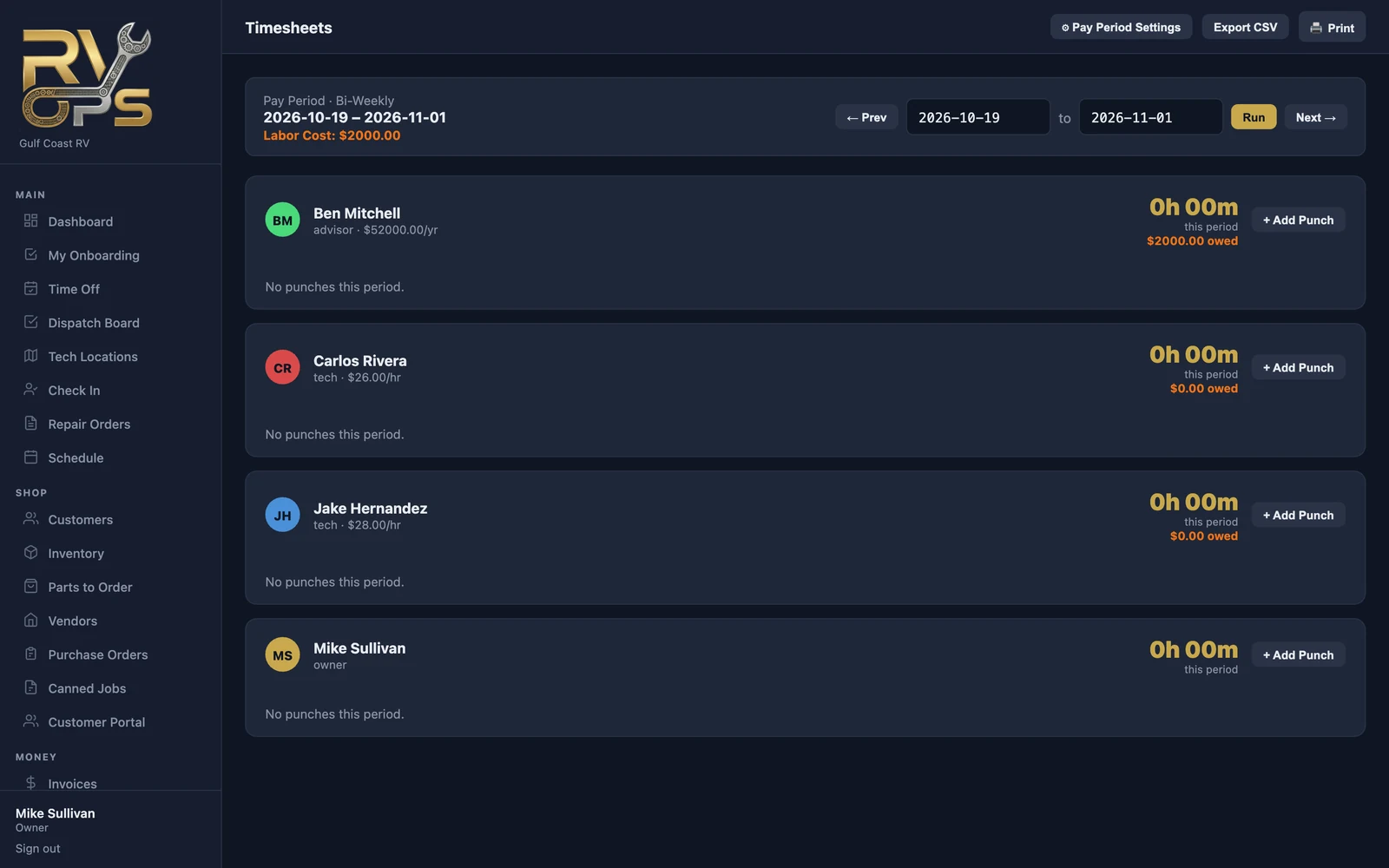
- + Add Punch or edit a punch to fix missed clock-ins.
- Export CSV for your payroll service or accountant.
- 🖨 Print for signatures or your files.
Pay reports
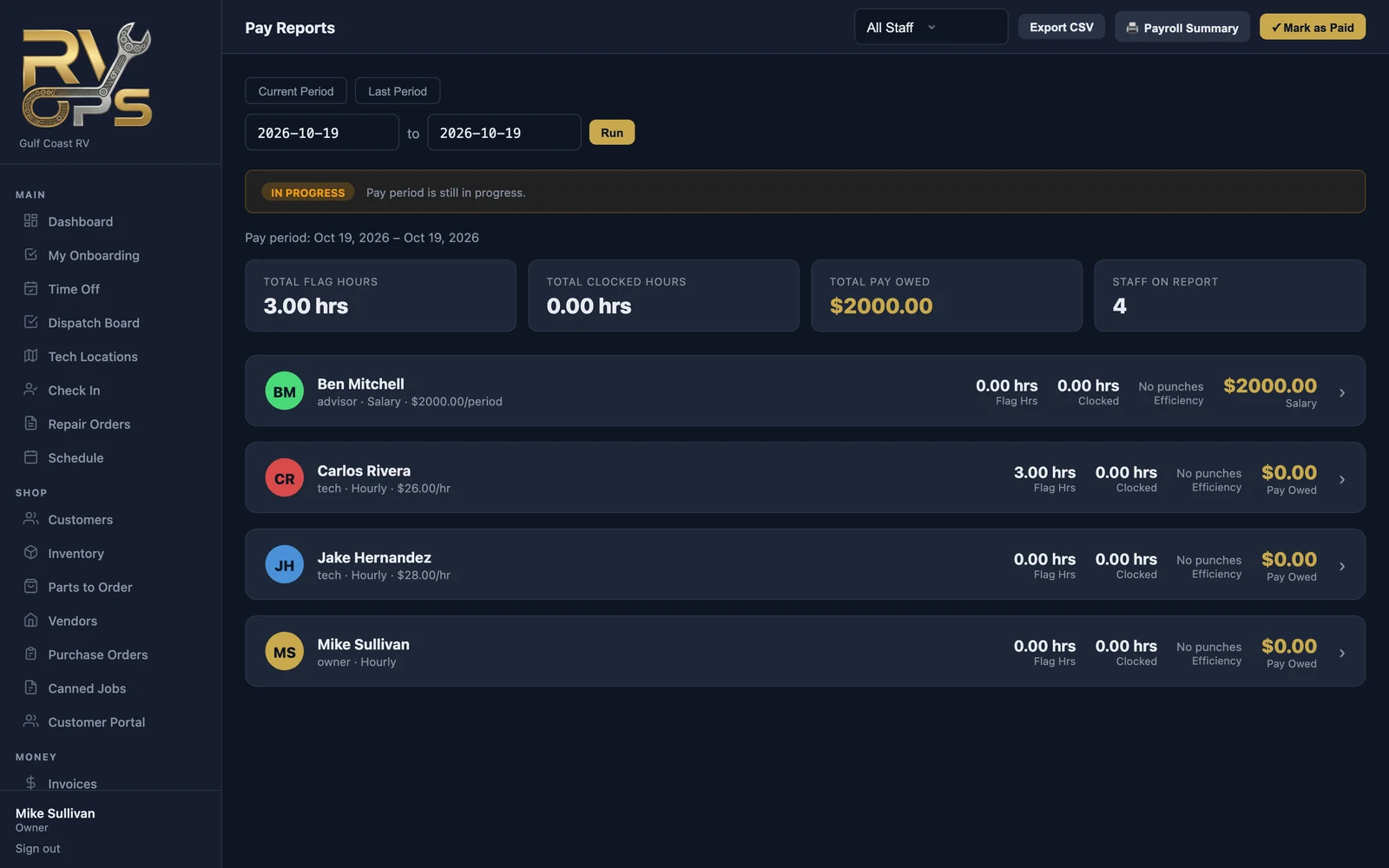
Open Team → Pay Reports. For the pay period (or any dates), you'll see total flag hours, total clocked hours and total pay owed, then a line for each person with their pay type, flag hours, clocked hours, efficiency and pay. Click a person to see the jobs behind their numbers.
How pay is figured
Set each person's pay on their staff record (Team → Staff → ✏️) or HR file:
| Pay type | Paid on |
|---|---|
| Hourly | Clocked hours × hourly rate |
| Flat Rate (Flag) | Flag hours × flag rate, however long the jobs took |
| Salary | Their salary for the period |
| Salary + Commission | Salary plus a percentage of what they sell or produce |
Closing out a pay period
- Check the report, and fix any punches on Timesheets first.
- Click 🖨 Payroll Summary for a printable summary, or Export CSV.
- Run payroll the way you do today (your payroll service or accountant).
- Click ✓ Mark as Paid to record the period as paid. The dashboard reminds you if a finished period hasn't been marked paid.
Techs can see their own pay report ("My Pay Report") if you allow it. Who sees everyone's dollar amounts is controlled by the "View pay reports" permission.
Still stuck? Send us a message (or email [email protected]) and tell us what you were trying to do — we answer within one business day.